> ## Documentation Index
> Fetch the complete documentation index at: https://docs.gidr.ai/llms.txt
> Use this file to discover all available pages before exploring further.
# Manage Flows
> Create and manage AI workflows in the AI Studio.
Workflows (or Flows) are visual representations of your AI logic, connecting different nodes to process data, reasoning, and actions.
## AI Studio Overview
To access the AI Studio, open any GIDR and click on the **AI studio** tab in the top navigation bar.
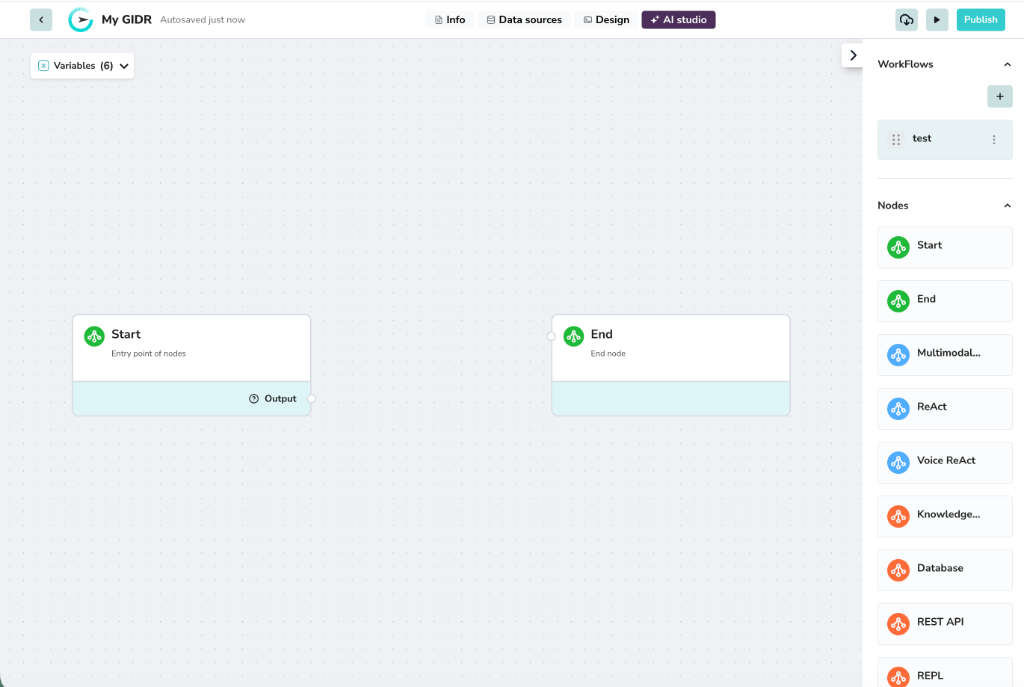 The AI Studio interface consists of:
1. **Canvas**: The central area where you build your flows.
2. **Workflows Panel**: On the right, lists all your workflows.
3. **Nodes Panel**: On the right (below workflows), lists available components to build with.
## Create Workflow
You can create a new workflow from scratch or import one.
1. In the **Workflows** panel on the right, click the **+ (Add)** button.
2. The **Create Workflow** dialog will appear.
The AI Studio interface consists of:
1. **Canvas**: The central area where you build your flows.
2. **Workflows Panel**: On the right, lists all your workflows.
3. **Nodes Panel**: On the right (below workflows), lists available components to build with.
## Create Workflow
You can create a new workflow from scratch or import one.
1. In the **Workflows** panel on the right, click the **+ (Add)** button.
2. The **Create Workflow** dialog will appear.
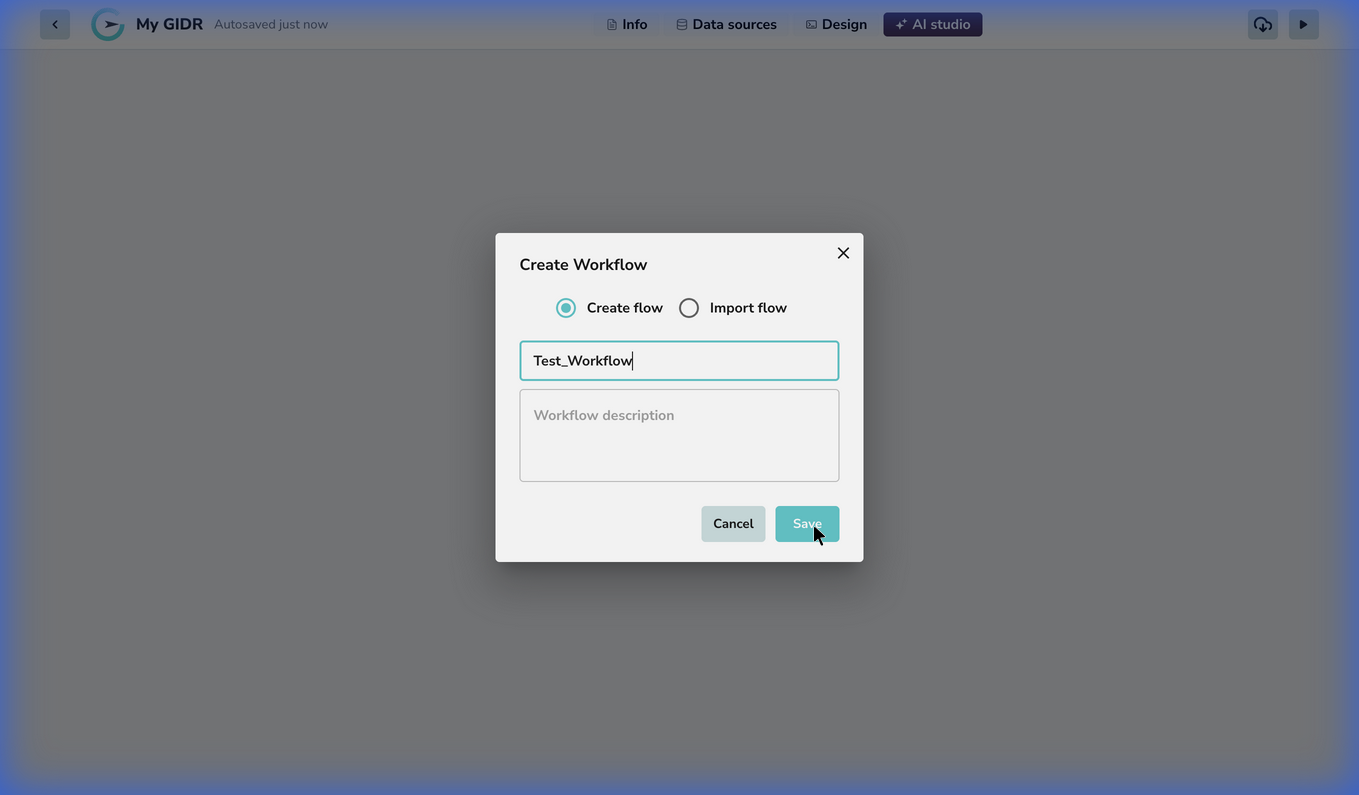 3. Enter a **Workflow name** (required). Names can contain letters, numbers, underscores, and hyphens.
4. Optionally provide a **Description**.
5. Click **Save**.
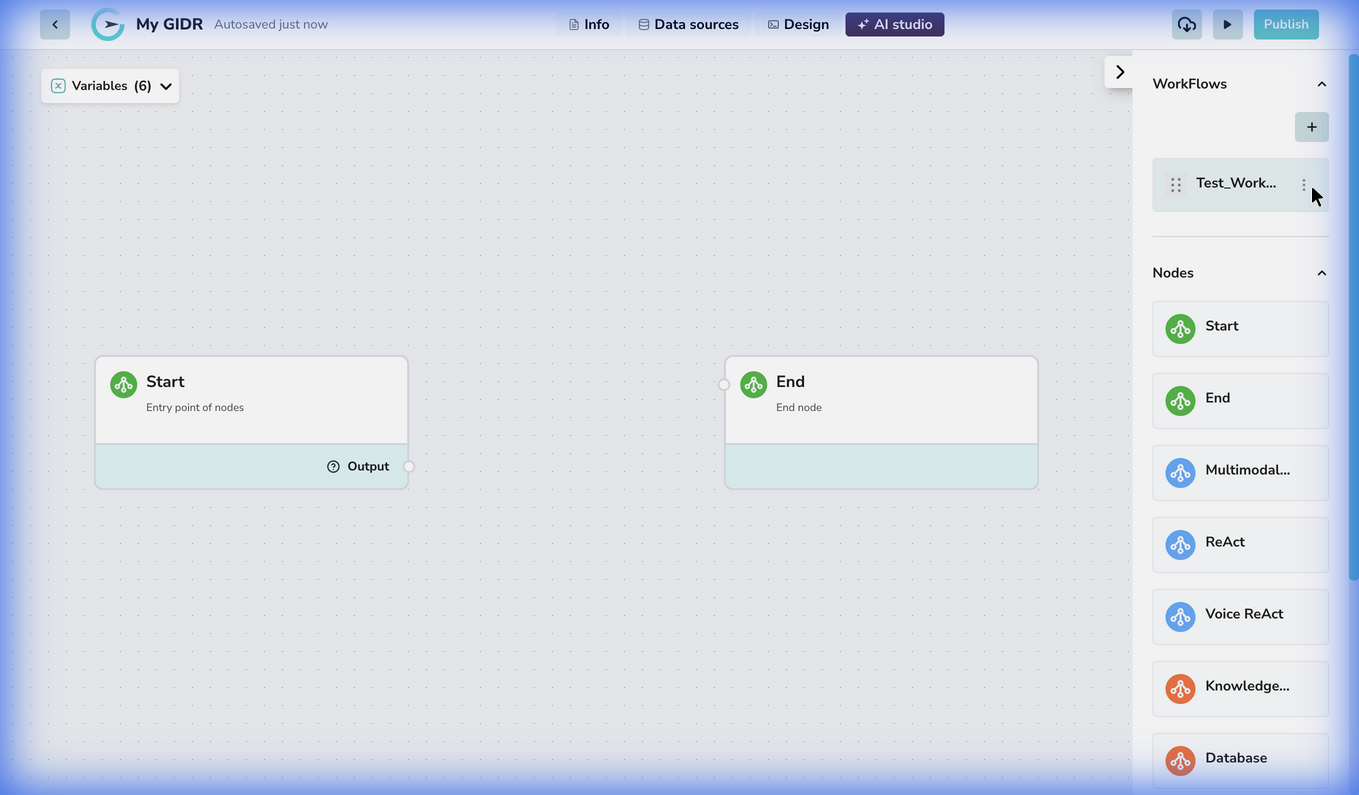
Your new workflow will open in the editor, typically starting with a `Start` and `End` node.
## Manage Workflows
All your workflows are listed in the **Workflows** panel. You can manage them using the actions menu (three dots) next to each workflow.
3. Enter a **Workflow name** (required). Names can contain letters, numbers, underscores, and hyphens.
4. Optionally provide a **Description**.
5. Click **Save**.
Your new workflow will open in the editor, typically starting with a `Start` and `End` node.
## Manage Workflows
All your workflows are listed in the **Workflows** panel. You can manage them using the actions menu (three dots) next to each workflow.
 ### Edit Workflow
Click the workflow name or select **Edit** from the menu to open it in the canvas.
### Export Workflow
Select **Export flow** to download your workflow configuration as a JSON file. This is useful for backups or sharing flows between GIDRs.
### Copy Flow ID
Select **Copy flow id** to get the unique identifier for the workflow, which may be needed for API integrations.
### Delete Workflow
Deleting a workflow is permanent and cannot be undone.
Select **Delete** to permanently remove the workflow.
### Edit Workflow
Click the workflow name or select **Edit** from the menu to open it in the canvas.
### Export Workflow
Select **Export flow** to download your workflow configuration as a JSON file. This is useful for backups or sharing flows between GIDRs.
### Copy Flow ID
Select **Copy flow id** to get the unique identifier for the workflow, which may be needed for API integrations.
### Delete Workflow
Deleting a workflow is permanent and cannot be undone.
Select **Delete** to permanently remove the workflow.