> ## Documentation Index
> Fetch the complete documentation index at: https://docs.gidr.ai/llms.txt
> Use this file to discover all available pages before exploring further.
# Database
> Sync data directly from SQL databases.
# Database
The **Database** data source allows you to connect and sync data tables directly from an external SQL database.
## Supported Databases
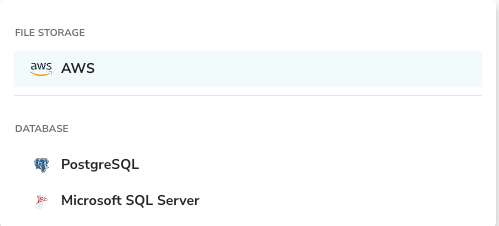
* **PostgreSQL**
* **Microsoft SQL Server**
## Connect Data source
1. Select **Data Sources** > **+ Add**.
2. Choose **Database** as the source type.
3. Select your database provider (e.g., **PostgreSQL** or **Microsoft SQL Server**).
 For detailed configuration settings for each database connector (Host, Port, Credentials), please refer to the [Connectors](connectors#database-connectors) page.
## Upload Database (Excel)
Alternatively, you can upload an offline database in Excel format. This is useful for importing static datasets that follow a relational structure.
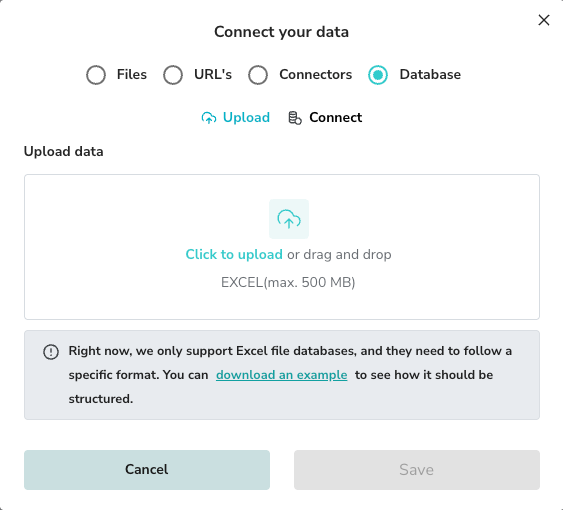
1. In the "Connect your data" modal, select **Database**.
2. Switch to the **Upload** tab.
3. Upload your Excel file (Max 500 MB).
For detailed configuration settings for each database connector (Host, Port, Credentials), please refer to the [Connectors](connectors#database-connectors) page.
## Upload Database (Excel)
Alternatively, you can upload an offline database in Excel format. This is useful for importing static datasets that follow a relational structure.
1. In the "Connect your data" modal, select **Database**.
2. Switch to the **Upload** tab.
3. Upload your Excel file (Max 500 MB).
 ### Excel Format Requirements
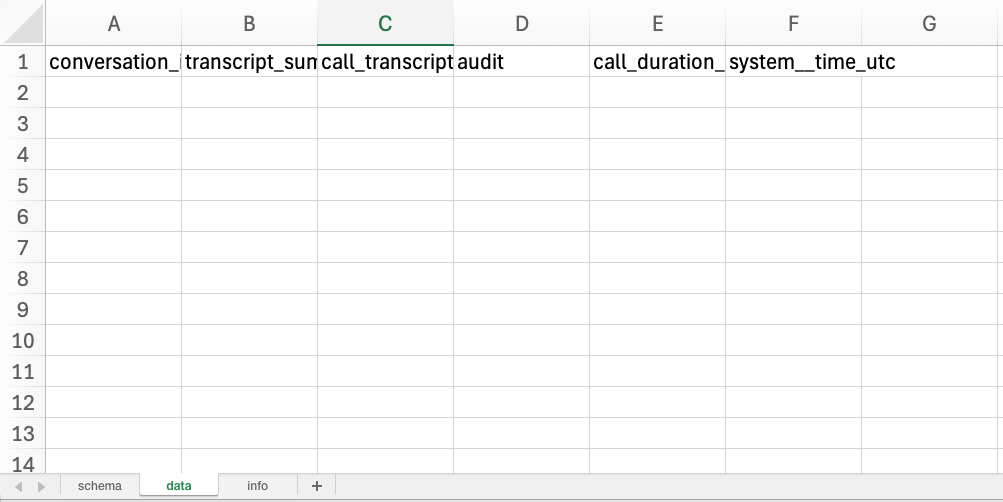
The Excel file must follow a strict template with three sheets: **schema**, **data**, and **info**.
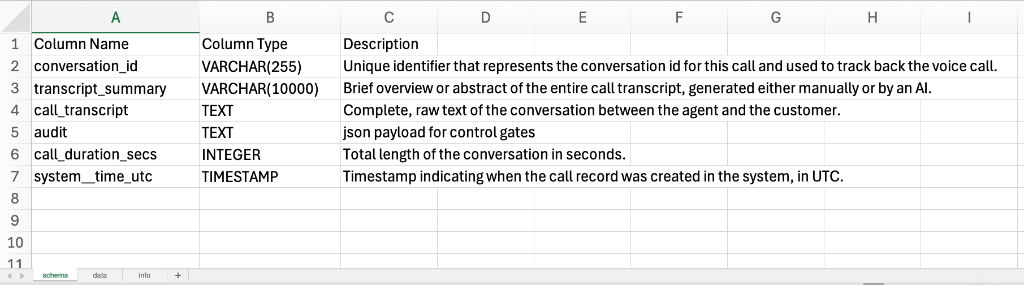
#### 1. Schema Sheet
Defines the table structure.
* **Column Name**: The name of the field.
* **Column Type**: Data type (e.g., `VARCHAR(255)`, `TEXT`, `INTEGER`, `TIMESTAMP`).
* **Description**: A description of what the column represents.
### Excel Format Requirements
The Excel file must follow a strict template with three sheets: **schema**, **data**, and **info**.
#### 1. Schema Sheet
Defines the table structure.
* **Column Name**: The name of the field.
* **Column Type**: Data type (e.g., `VARCHAR(255)`, `TEXT`, `INTEGER`, `TIMESTAMP`).
* **Description**: A description of what the column represents.
 #### 2. Data Sheet
Contains the actual data records corresponding to the schema.
#### 2. Data Sheet
Contains the actual data records corresponding to the schema.
 #### 3. Info Sheet
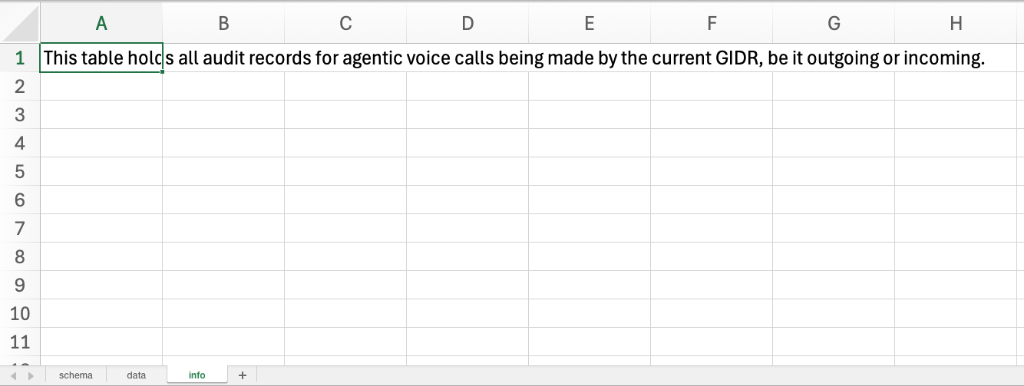
Provides metadata about the table.
* **Cell A1**: A comprehensive description of the table's purpose (e.g., "This table holds all audit records...").
#### 3. Info Sheet
Provides metadata about the table.
* **Cell A1**: A comprehensive description of the table's purpose (e.g., "This table holds all audit records...").
 ## Managing Databases
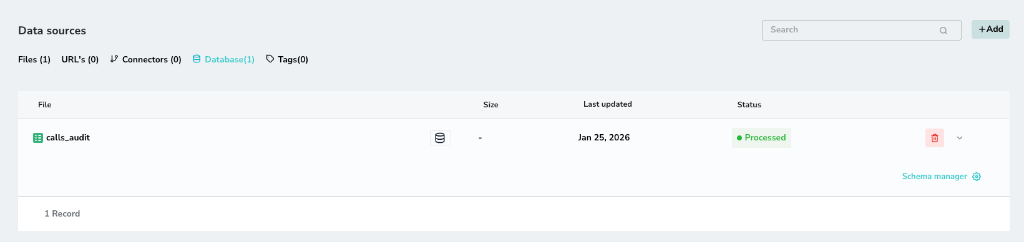
Once connected or uploaded, your database tables appear in the data sources list.
## Managing Databases
Once connected or uploaded, your database tables appear in the data sources list.
 ### Schema Manager
You can view and edit the metadata for any table by clicking the **Schema Manager** link (gear icon).
### Schema Manager
You can view and edit the metadata for any table by clicking the **Schema Manager** link (gear icon).
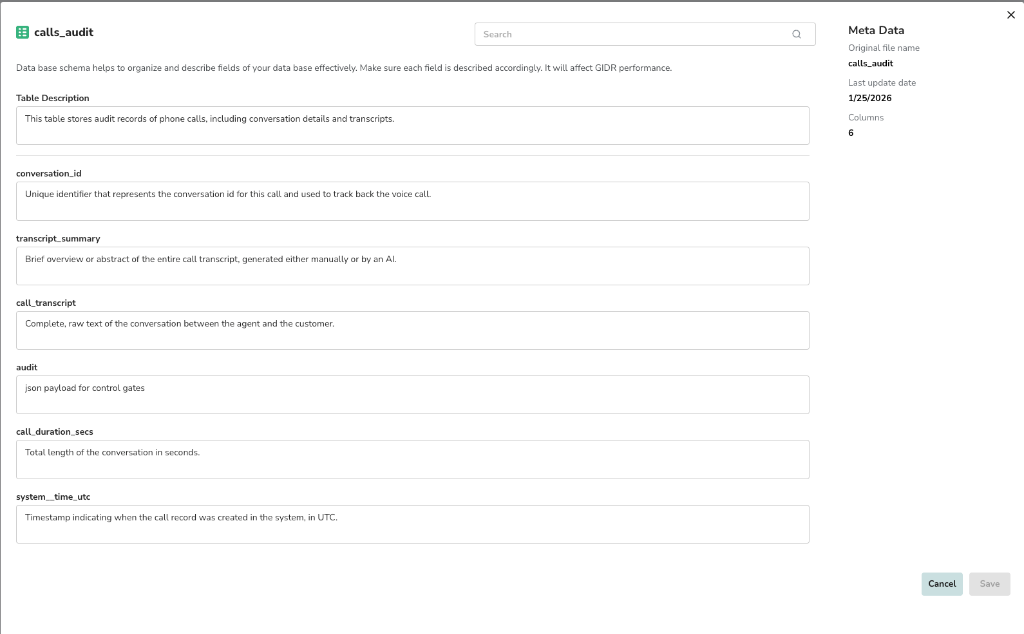 The Schema Manager allows you to:
* **Edit Table Description**: Update the high-level description of what the table contains.
* **Edit Column Descriptions**: Refine the descriptions for individual columns.
Why edit descriptions? The system uses these descriptions to understand the semantic meaning of your data. Improving them can significantly enhance the accuracy of natural language queries and retrieval performance.
The Schema Manager allows you to:
* **Edit Table Description**: Update the high-level description of what the table contains.
* **Edit Column Descriptions**: Refine the descriptions for individual columns.
Why edit descriptions? The system uses these descriptions to understand the semantic meaning of your data. Improving them can significantly enhance the accuracy of natural language queries and retrieval performance.