> ## Documentation Index
> Fetch the complete documentation index at: https://docs.gidr.ai/llms.txt
> Use this file to discover all available pages before exploring further.
# URLs
> Ingest content from websites and knowledge bases.
The **URLs** data source allows you to ingest content from web pages or knowledge bases. Unlike traditional crawlers, the system operates via **real-time search**:
1. **Scoped Search & Scrape**: It searches for relevant pages **scoped to the provided URL** (and its sub-paths). This creates a controlled boundary, ensuring content is only ingested from the specified enterprise source.
2. **Caching**: Scraped content is saved to a local cache with a [configurable expiry](#connect-data-source).
3. **Retrieval**: When a query is made, the system first checks the local cache. If the content is missing or expired, it searches the internet (within the defined scope) and scrapes fresh content in parallel.
## Connect Data source
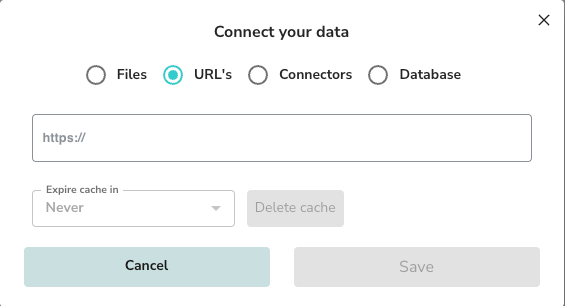
1. Select **Data Sources** > **+ Add**.
2. Choose **URL's** as the source type.
3. Enter the starting **URL** (e.g., `https://dashboard.intelligrated.com/knowledgebase`).
4. (Optional) Set an **Expire cache in** value if you want the system to periodically refresh the content.
 ## Managing URLs
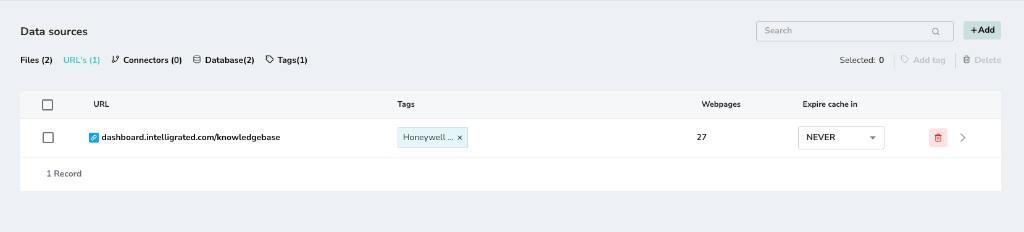
Once added, the top-level URL appears in your list. The system identifies the number of webpages found under that path.
## Managing URLs
Once added, the top-level URL appears in your list. The system identifies the number of webpages found under that path.
 ### Webpages List
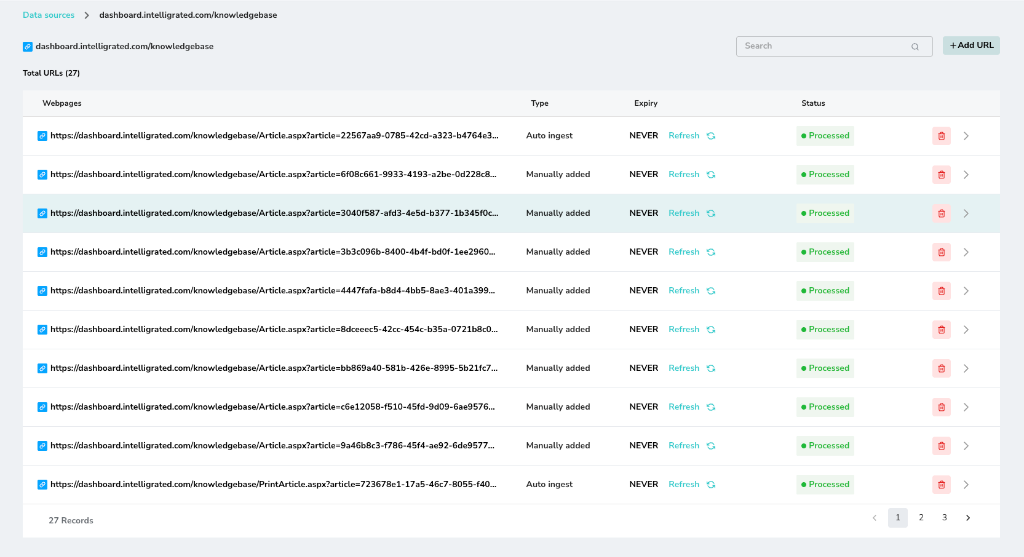
Click on the main URL to view the list of individual webpages that have been discovered and processed. Each page is ingested separately.
### Webpages List
Click on the main URL to view the list of individual webpages that have been discovered and processed. Each page is ingested separately.
 ## Chunk Manager
Just like with files, you can manage the chunks generated from each webpage to ensure high-quality retrieval.
1. Click the arrow icon `>` next to a specific webpage to open its chunk view.
2. Navigate through the chunks using the **Next** arrow.
## Chunk Manager
Just like with files, you can manage the chunks generated from each webpage to ensure high-quality retrieval.
1. Click the arrow icon `>` next to a specific webpage to open its chunk view.
2. Navigate through the chunks using the **Next** arrow.
 ### Chunk Details
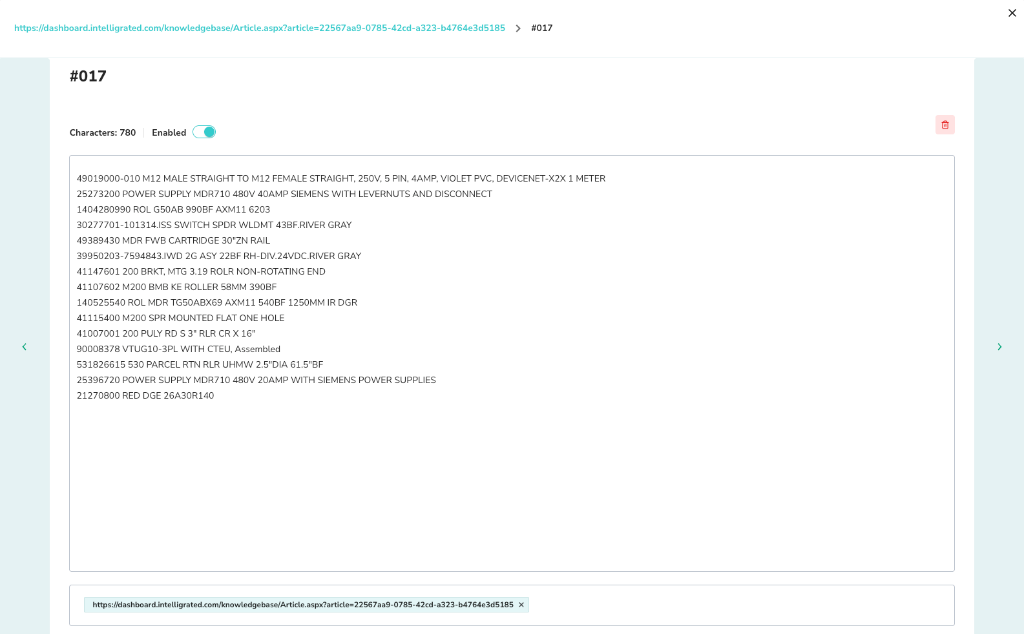
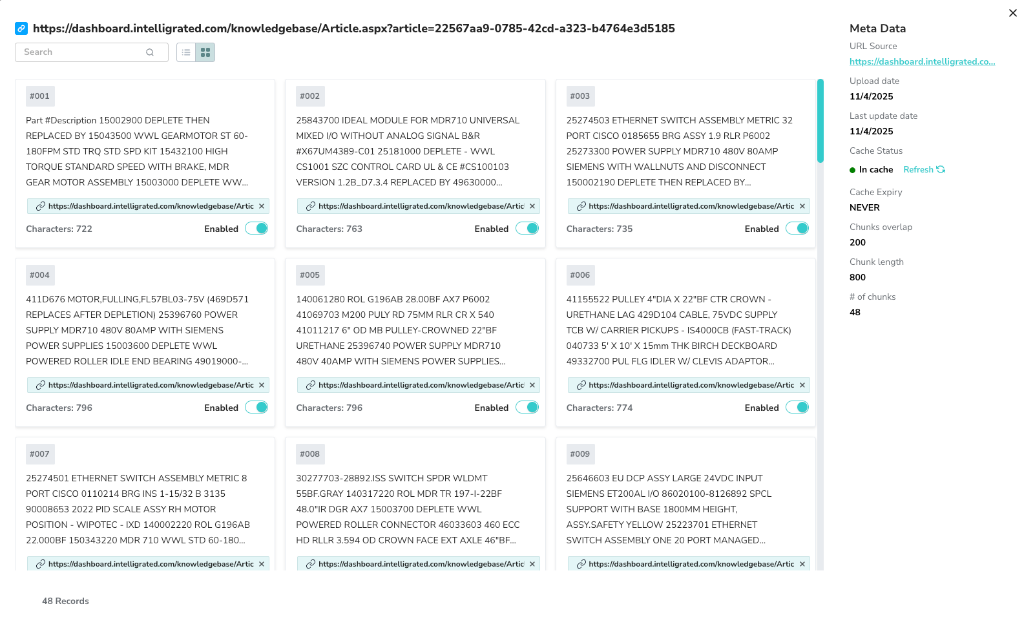
You can view the specific content of a chunk, its character count, and metadata. You can enable or disable specific chunks as needed.
### Chunk Details
You can view the specific content of a chunk, its character count, and metadata. You can enable or disable specific chunks as needed.