> ## Documentation Index
> Fetch the complete documentation index at: https://docs.gidr.ai/llms.txt
> Use this file to discover all available pages before exploring further.
# Manage GIDRs
> Manage your GIDRs.
A GIDR serves as a container for your specific use cases, organizing AI models, prompts, data sources, and workflows.
## Create GIDR
Start by creating a new GIDR for your team.
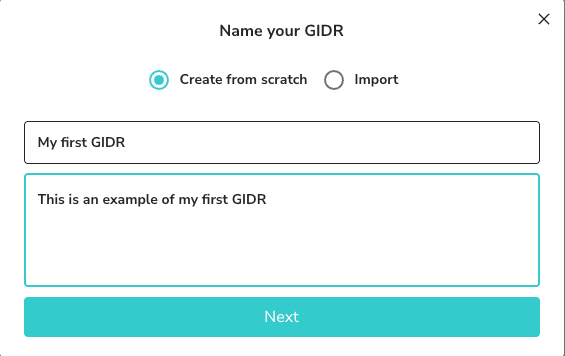
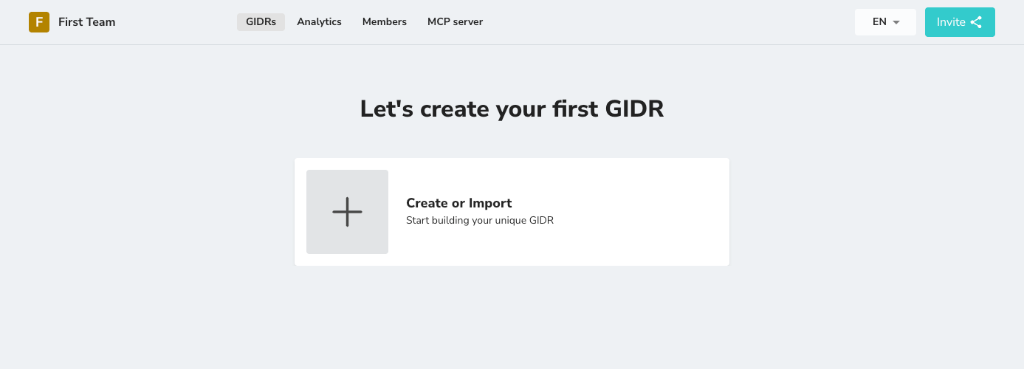 ### Create from Scratch
1. Click the "**+**" button or "**Create GIDR**" if you already have existing GIDRs.
2. Select **Create from scratch**.
3. Enter a descriptive **Name** (e.g., "Customer Support Bot").
4. Provide a **Description** for context.
5. Click **Next** to proceed to configuration.
### Create from Scratch
1. Click the "**+**" button or "**Create GIDR**" if you already have existing GIDRs.
2. Select **Create from scratch**.
3. Enter a descriptive **Name** (e.g., "Customer Support Bot").
4. Provide a **Description** for context.
5. Click **Next** to proceed to configuration.
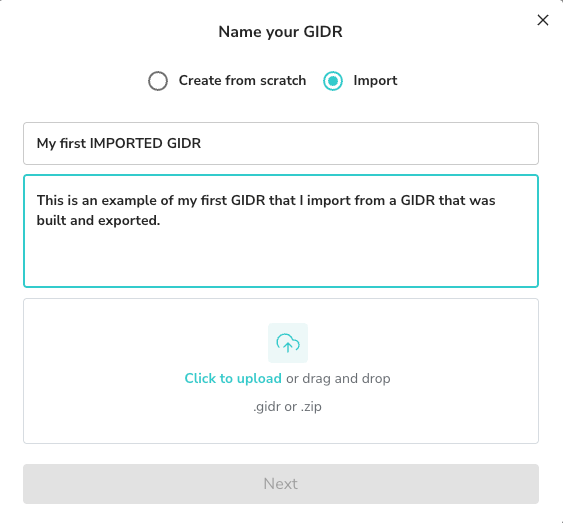
 ### Import GIDR
You can import a GIDR from an exported configuration file (`.zip`).
1. Select **Import**.
2. Enter a **Name** and **Description**.
3. Click to upload or drag and drop your GIDR file.
4. Click **Next**.
### Import GIDR
You can import a GIDR from an exported configuration file (`.zip`).
1. Select **Import**.
2. Enter a **Name** and **Description**.
3. Click to upload or drag and drop your GIDR file.
4. Click **Next**.
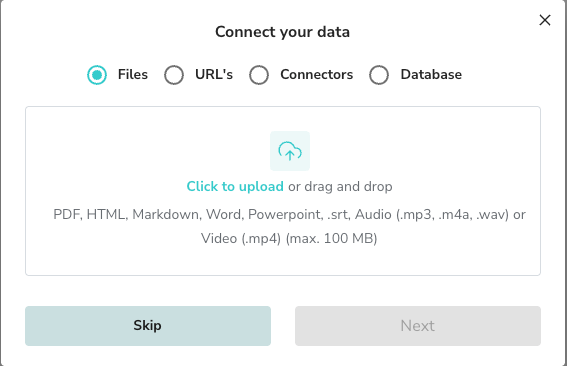
 5. Configure your initial data sources (Files, URLs, Connectors, or Database).
 ## List GIDRs
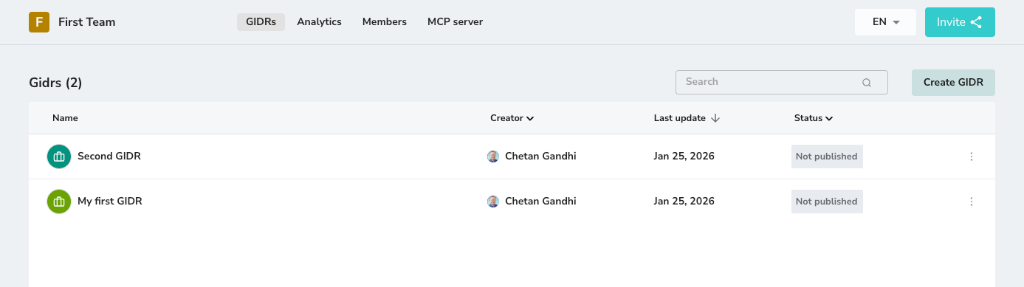
View and manage all your GIDRs in the list view. You can see the creator, last update date, and publication status.
## List GIDRs
View and manage all your GIDRs in the list view. You can see the creator, last update date, and publication status.
 ## Manage GIDR Actions
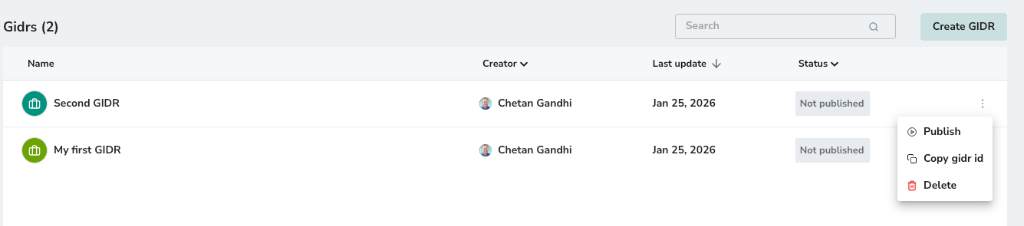
Click the **three dots** menu on the right side of any GIDR to access management actions.
## Manage GIDR Actions
Click the **three dots** menu on the right side of any GIDR to access management actions.
 ### Publish GIDR
Publishing a GIDR makes it accessible.
1. Select **Publish** from the menu.
2. Alternatively, you can unpublish a GIDR to return it to draft mode.
### Delete GIDR
Deleting a GIDR is permanent and cannot be undone.
1. Select **Delete** from the menu.
2. Confirm the action in the dialog to permanently remove the GIDR.
### Publish GIDR
Publishing a GIDR makes it accessible.
1. Select **Publish** from the menu.
2. Alternatively, you can unpublish a GIDR to return it to draft mode.
### Delete GIDR
Deleting a GIDR is permanent and cannot be undone.
1. Select **Delete** from the menu.
2. Confirm the action in the dialog to permanently remove the GIDR.