> ## Documentation Index
> Fetch the complete documentation index at: https://docs.gidr.ai/llms.txt
> Use this file to discover all available pages before exploring further.
# Bring Your Own LLM
> Connect your own Language Model providers.
The **Bring Your Own LLM** feature allows enterprise customers to use their own API keys for various LLM providers, ensuring data privacy and control.
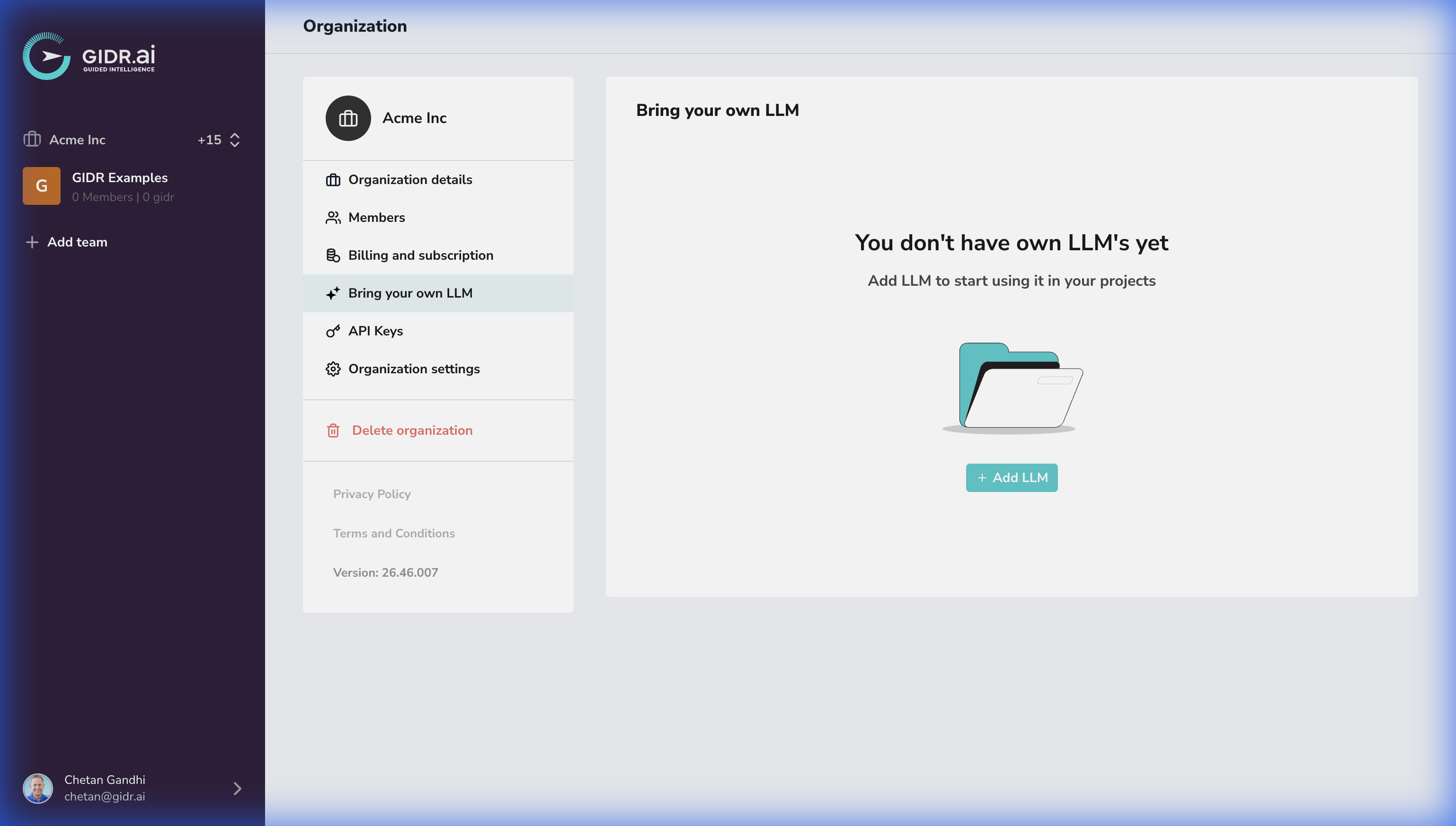 ## Supported Providers
You can configure API keys for:
* **OpenAI**
* **Azure OpenAI**
* **Anthropic**
* **Gemini**
### OpenAI
To add OpenAI as a provider, you will need to provide your OpenAI endpoint details.
## Supported Providers
You can configure API keys for:
* **OpenAI**
* **Azure OpenAI**
* **Anthropic**
* **Gemini**
### OpenAI
To add OpenAI as a provider, you will need to provide your OpenAI endpoint details.
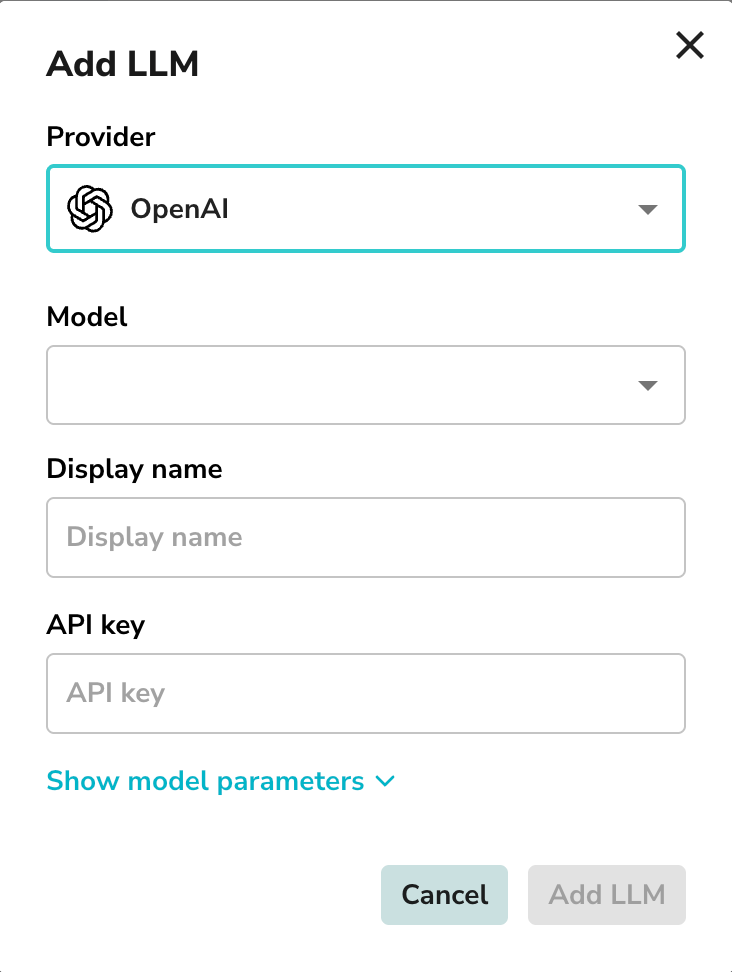 1. **Provider**: Select **OpenAI**.
2. **Model**: Select a specific model if required.
3. **Display name**: Enter a name to identify this configuration.
4. **API key**: Enter your valid OpenAI API key.
5. **Temperature**: Adjust the temperature for the model.
6. **Max tokens**: Set the maximum number of tokens for the model.
7. **Vision capabilities**: Enable vision capabilities if required.
8. **Audio capabilities**: Enable audio capabilities if required.
### Azure OpenAI
For Azure OpenAI, you need to provide Azure OpenAI endpoint details.
1. **Provider**: Select **OpenAI**.
2. **Model**: Select a specific model if required.
3. **Display name**: Enter a name to identify this configuration.
4. **API key**: Enter your valid OpenAI API key.
5. **Temperature**: Adjust the temperature for the model.
6. **Max tokens**: Set the maximum number of tokens for the model.
7. **Vision capabilities**: Enable vision capabilities if required.
8. **Audio capabilities**: Enable audio capabilities if required.
### Azure OpenAI
For Azure OpenAI, you need to provide Azure OpenAI endpoint details.
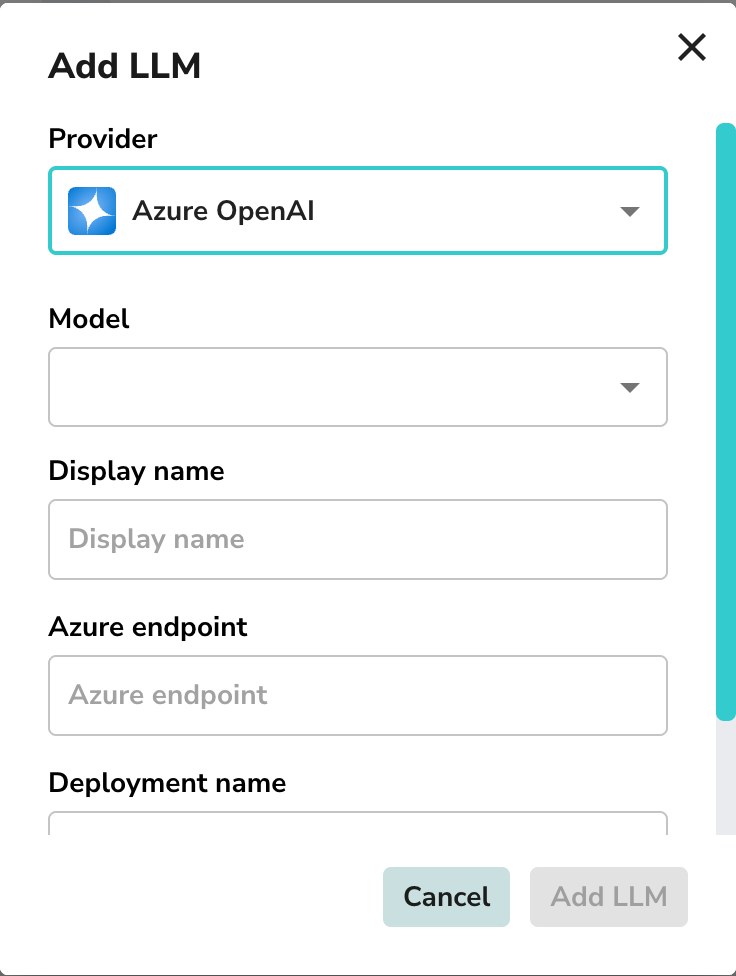 1. **Provider**: Select **Azure OpenAI**.
2. **Model**: Select the model you wish to use.
3. **Display name**: Enter a name for this deployment.
4. **Azure endpoint**: Enter your Azure OpenAI endpoint URL.
5. **Deployment name**: Enter the specific deployment name from your Azure portal.
6. **API version**: Select the API version for the model.
7. **API key**: Enter your valid Azure OpenAI API key.
8. **Temperature**: Adjust the temperature for the model.
9. **Max tokens**: Set the maximum number of tokens for the model.
10. **Vision capabilities**: Enable vision capabilities if required.
11. **Audio capabilities**: Enable audio capabilities if required.
### Anthropic
To add Anthropic as a provider, you will need to provide your Anthropic details.
1. **Provider**: Select **Azure OpenAI**.
2. **Model**: Select the model you wish to use.
3. **Display name**: Enter a name for this deployment.
4. **Azure endpoint**: Enter your Azure OpenAI endpoint URL.
5. **Deployment name**: Enter the specific deployment name from your Azure portal.
6. **API version**: Select the API version for the model.
7. **API key**: Enter your valid Azure OpenAI API key.
8. **Temperature**: Adjust the temperature for the model.
9. **Max tokens**: Set the maximum number of tokens for the model.
10. **Vision capabilities**: Enable vision capabilities if required.
11. **Audio capabilities**: Enable audio capabilities if required.
### Anthropic
To add Anthropic as a provider, you will need to provide your Anthropic details.
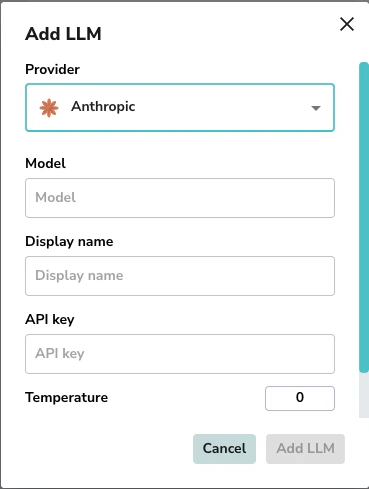 1. **Provider**: Select **Anthropic**.
2. **Model**: Select the model you wish to use.
3. **Display name**: Enter a name for this configuration.
4. **API key**: Enter your valid Anthropic API key.
5. **Temperature**: Adjust the temperature for the model (default is 0).
6. **Max tokens**: Set the maximum number of tokens for the model (default is 32000).
7. **Vision capabilities**: Enable vision capabilities if required.
8. **Audio capabilities**: Enable audio capabilities if required.
### Gemini
To add Gemini as a provider, you will need to provide your Gemini details.
1. **Provider**: Select **Anthropic**.
2. **Model**: Select the model you wish to use.
3. **Display name**: Enter a name for this configuration.
4. **API key**: Enter your valid Anthropic API key.
5. **Temperature**: Adjust the temperature for the model (default is 0).
6. **Max tokens**: Set the maximum number of tokens for the model (default is 32000).
7. **Vision capabilities**: Enable vision capabilities if required.
8. **Audio capabilities**: Enable audio capabilities if required.
### Gemini
To add Gemini as a provider, you will need to provide your Gemini details.
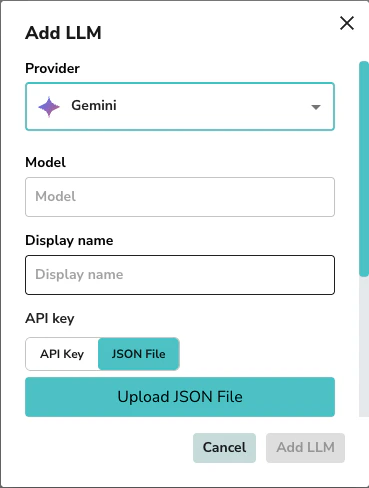 1. **Provider**: Select **Gemini**.
2. **Model**: Select the model you wish to use.
3. **Display name**: Enter a name for this configuration.
4. **API key or JSON File**: Upload your Google service account credentials JSON file or use an API Key.
5. **Project**: Enter your Google Cloud Project ID (e.g. `my-gcp-project`).
6. **Location**: Enter your Google Cloud Location (e.g. `us-central1`).
7. **Temperature**: Adjust the temperature for the model (default is 0).
8. **Max tokens**: Set the maximum number of tokens for the model (default is 32000).
9. **Vision capabilities**: Enable vision capabilities if required.
10. **Audio capabilities**: Enable audio capabilities if required.
Once configured, these models become available for use across your GIDRs and Gidgets.
***
1. **Provider**: Select **Gemini**.
2. **Model**: Select the model you wish to use.
3. **Display name**: Enter a name for this configuration.
4. **API key or JSON File**: Upload your Google service account credentials JSON file or use an API Key.
5. **Project**: Enter your Google Cloud Project ID (e.g. `my-gcp-project`).
6. **Location**: Enter your Google Cloud Location (e.g. `us-central1`).
7. **Temperature**: Adjust the temperature for the model (default is 0).
8. **Max tokens**: Set the maximum number of tokens for the model (default is 32000).
9. **Vision capabilities**: Enable vision capabilities if required.
10. **Audio capabilities**: Enable audio capabilities if required.
Once configured, these models become available for use across your GIDRs and Gidgets.
***