> ## Documentation Index
> Fetch the complete documentation index at: https://docs.gidr.ai/llms.txt
> Use this file to discover all available pages before exploring further.
# Members
> Manage team members and invitations.
The **Members** section allows you to manage access to your organization by inviting users and controlling team membership.
 ## Invite Members
You can invite new users to join your organization via email.
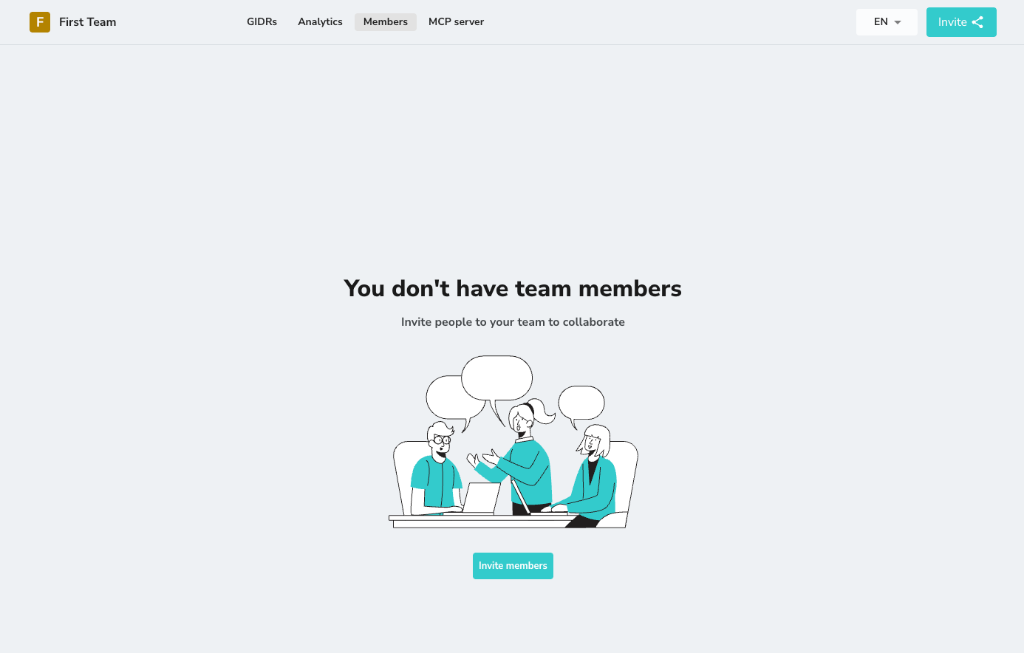
1. Click **Invite members** (or the **Invite** button in the top right).
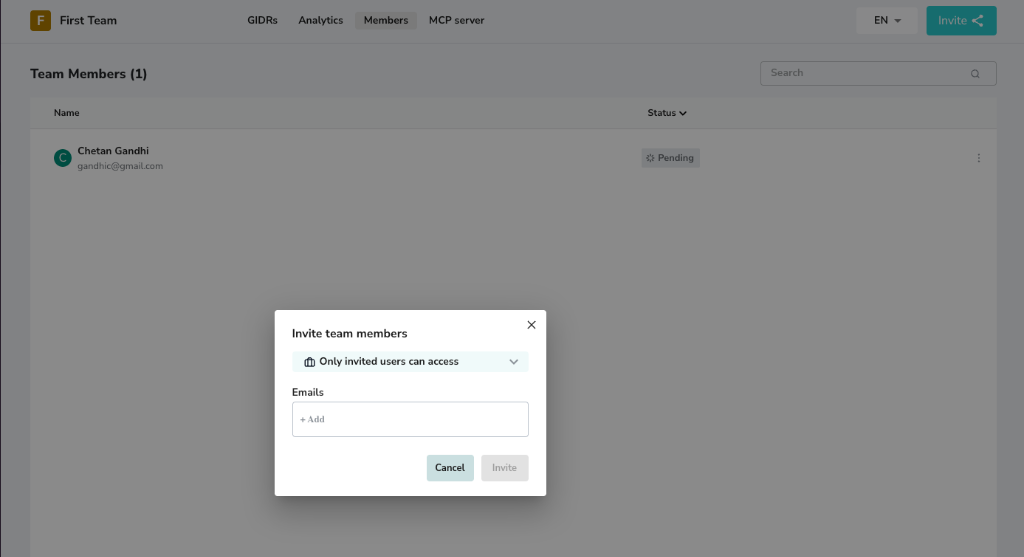
2. Enter the email addresses of the users you wish to invite.
3. Click **Invite** to send the invitations.
Invitations are sent via email and are valid for **1 day**. If the user does not accept the invitation within 24 hours, the link will expire, and you will need to resend the invitation.
## Invite Members
You can invite new users to join your organization via email.
1. Click **Invite members** (or the **Invite** button in the top right).
2. Enter the email addresses of the users you wish to invite.
3. Click **Invite** to send the invitations.
Invitations are sent via email and are valid for **1 day**. If the user does not accept the invitation within 24 hours, the link will expire, and you will need to resend the invitation.
 ## Manage Members
Once invitations are sent, users will appear in the members list. You can view their status and manage their access.
### Resend Invitation
If an invitation has expired or the user hasn't received it:
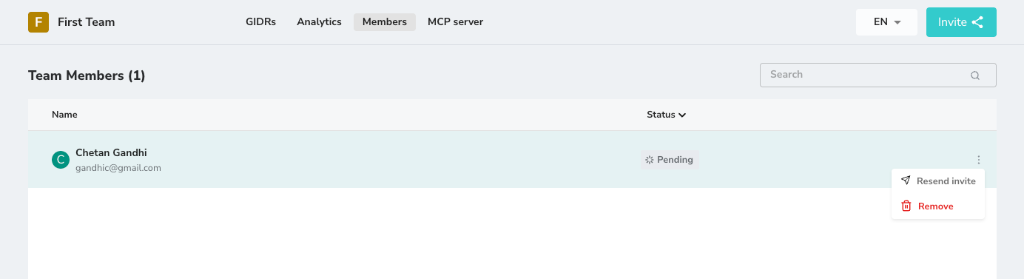
1. Locate the user in the members list (Status: *Pending*).
2. Click the **three dots** menu on the right.
3. Select **Resend invite**.
### Remove Member
To revoke a user's access to the organization:
1. Click the **three dots** menu next to the user's name.
2. Select **Remove**.
## Manage Members
Once invitations are sent, users will appear in the members list. You can view their status and manage their access.
### Resend Invitation
If an invitation has expired or the user hasn't received it:
1. Locate the user in the members list (Status: *Pending*).
2. Click the **three dots** menu on the right.
3. Select **Resend invite**.
### Remove Member
To revoke a user's access to the organization:
1. Click the **three dots** menu next to the user's name.
2. Select **Remove**.
 Removing a user from a **Team** does not remove them from your **Organization**.
* **Team Removal:** If you remove a user here, they will lose access to this specific Team but can still join and access other Teams they've been invited to.
* **Organization Removal:** If you need to completely remove a user from the entire Organization, you must go to **Organization Settings > Members** to revoke their access entirely.
Removing a user from a **Team** does not remove them from your **Organization**.
* **Team Removal:** If you remove a user here, they will lose access to this specific Team but can still join and access other Teams they've been invited to.
* **Organization Removal:** If you need to completely remove a user from the entire Organization, you must go to **Organization Settings > Members** to revoke their access entirely.