> ## Documentation Index
> Fetch the complete documentation index at: https://docs.gidr.ai/llms.txt
> Use this file to discover all available pages before exploring further.
# Organization Settings
> Configure global settings for your organization.
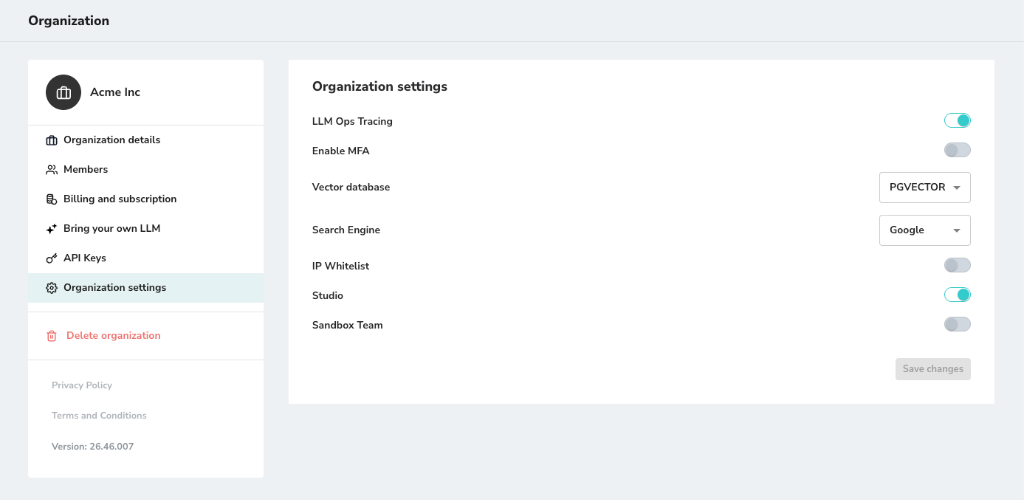
The **Organization Settings** page allows you to manage global configurations for your organization, including security, operations, and integrations.
 ## LLM Ops Tracing
* Controls tracing and telemetry collection for LLM executions, including latency, token usage, and tool invocations.
* Tracing is enabled by default in the staging environment (preview\.gidr.ai) to support troubleshooting and validation.
* Tracing is disabled by default in the production environment (app.gidr.ai). Production tracing can be enabled temporarily upon request in coordination with the GIDR DevOps team.
## Enable MFA
* Enforce Multi-Factor Authentication for all organization members.
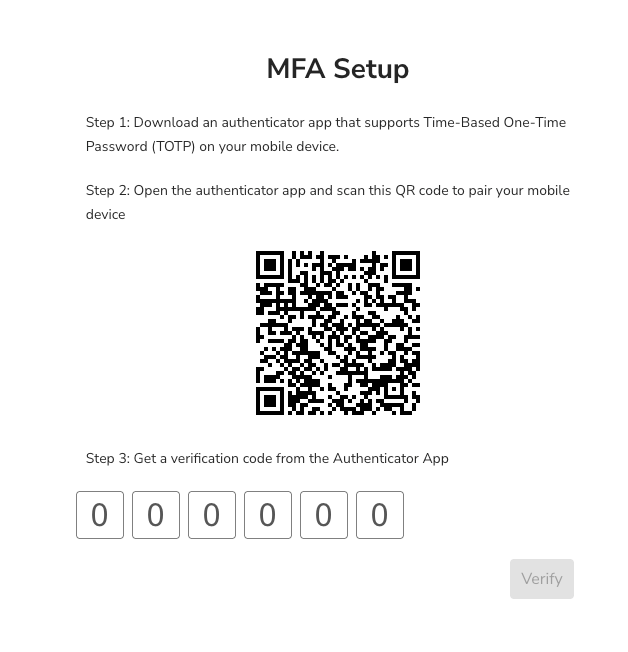
* Once this setting is enabled, all members will be required to configure MFA on their next login or when joining the organization.
* Members must use an authenticator app (e.g., Google Authenticator, Authy) to scan the provided QR code and verify their identity.
## LLM Ops Tracing
* Controls tracing and telemetry collection for LLM executions, including latency, token usage, and tool invocations.
* Tracing is enabled by default in the staging environment (preview\.gidr.ai) to support troubleshooting and validation.
* Tracing is disabled by default in the production environment (app.gidr.ai). Production tracing can be enabled temporarily upon request in coordination with the GIDR DevOps team.
## Enable MFA
* Enforce Multi-Factor Authentication for all organization members.
* Once this setting is enabled, all members will be required to configure MFA on their next login or when joining the organization.
* Members must use an authenticator app (e.g., Google Authenticator, Authy) to scan the provided QR code and verify their identity.
 ## Vector Database
* Choose your preferred vector database provider (e.g., PGVECTOR).
## Search Engine
* Select the search engine to be used for retrieval tasks (e.g., Google).
## IP Whitelist
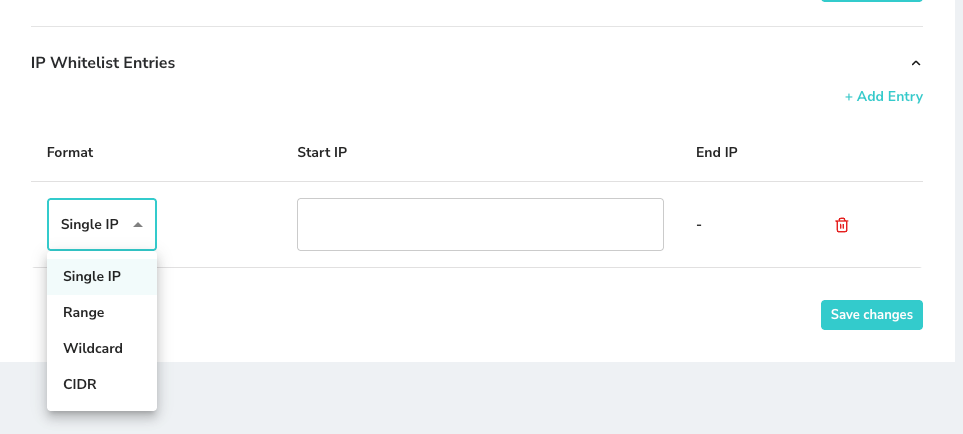
* Restrict access to your organization's resources to specific IP addresses.
* You can manage whitelist entries with the following formats:
* **Single IP**: Allow a specific individual IP address (e.g., `192.168.1.1`).
* **Range**: Allow a sequential range of IP addresses defined by a start and end IP.
* **Wildcard**: Allow patterns of IP addresses (e.g., `192.168.1.*`).
* **CIDR**: Allow a subnet of IP addresses using CIDR notation (e.g., `192.168.1.0/24`).
## Vector Database
* Choose your preferred vector database provider (e.g., PGVECTOR).
## Search Engine
* Select the search engine to be used for retrieval tasks (e.g., Google).
## IP Whitelist
* Restrict access to your organization's resources to specific IP addresses.
* You can manage whitelist entries with the following formats:
* **Single IP**: Allow a specific individual IP address (e.g., `192.168.1.1`).
* **Range**: Allow a sequential range of IP addresses defined by a start and end IP.
* **Wildcard**: Allow patterns of IP addresses (e.g., `192.168.1.*`).
* **CIDR**: Allow a subnet of IP addresses using CIDR notation (e.g., `192.168.1.0/24`).
 ## Studio
* Enable or disable access to the GIDR Studio for creating workflows.
## Sandbox Team
* Enable or disable Sandbox Team.
## Studio
* Enable or disable access to the GIDR Studio for creating workflows.
## Sandbox Team
* Enable or disable Sandbox Team.