

AI Studio Overview
To access the AI Studio, open any GIDR and click on the AI studio tab in the top navigation bar.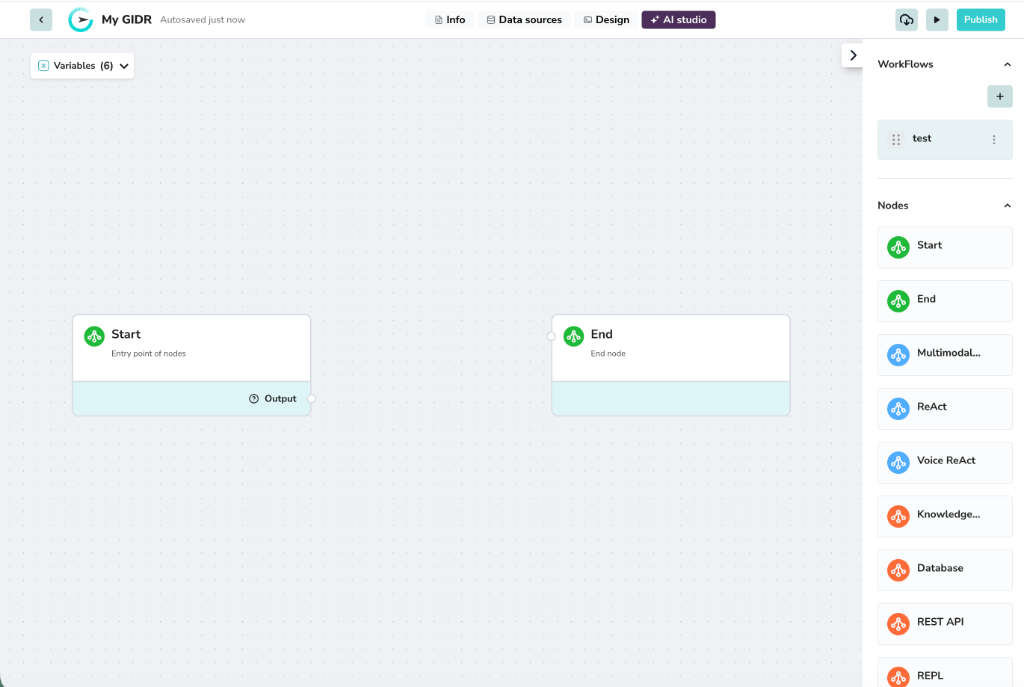
- Canvas: The central area where you build your flows.
- Workflows Panel: On the right, lists all your workflows.
- Nodes Panel: On the right (below workflows), lists available components to build with.
Create Workflow
You can create a new workflow from scratch or import one.- In the Workflows panel on the right, click the + (Add) button.
- The Create Workflow dialog will appear.
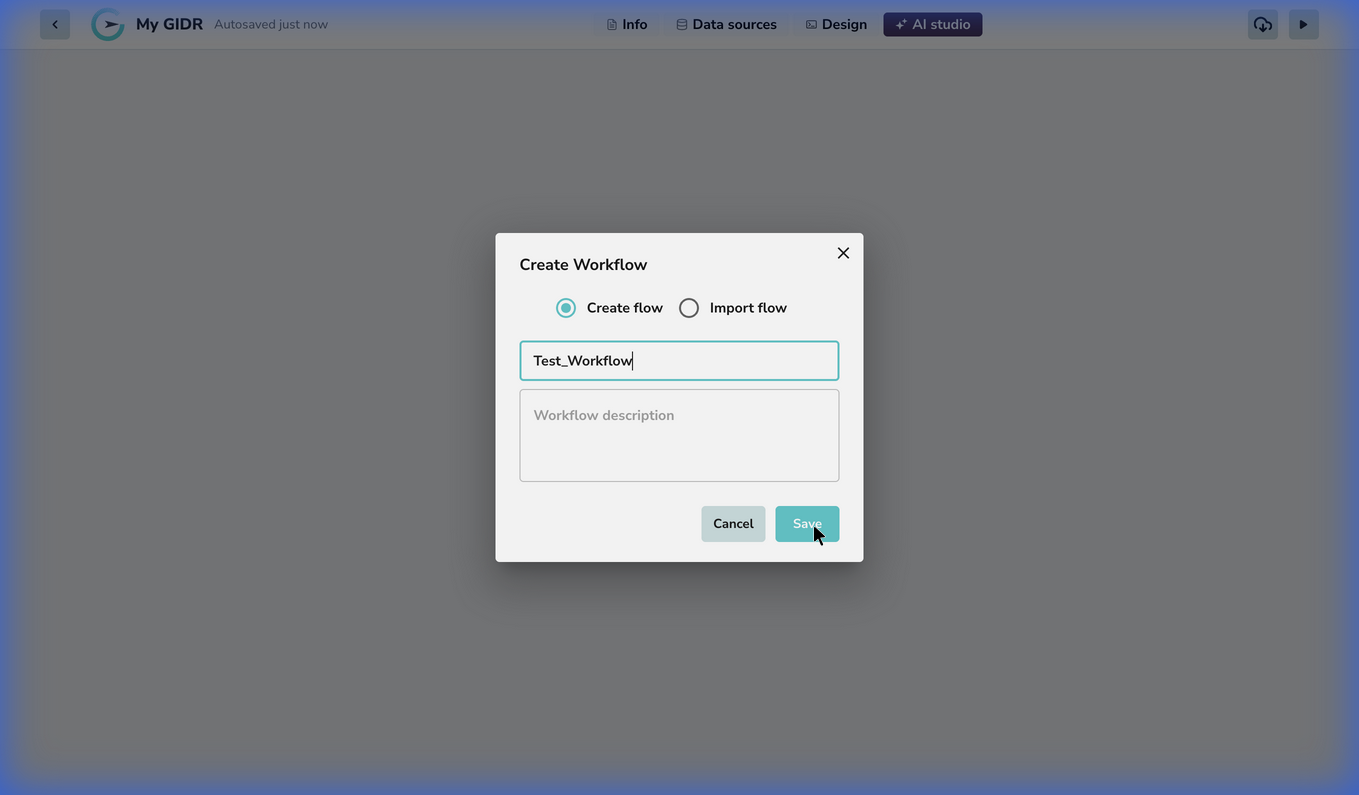
- Enter a Workflow name (required). Names can contain letters, numbers, underscores, and hyphens.
- Optionally provide a Description.
- Click Save.
Start and End node.
Manage Workflows
All your workflows are listed in the Workflows panel. You can manage them using the actions menu (three dots) next to each workflow.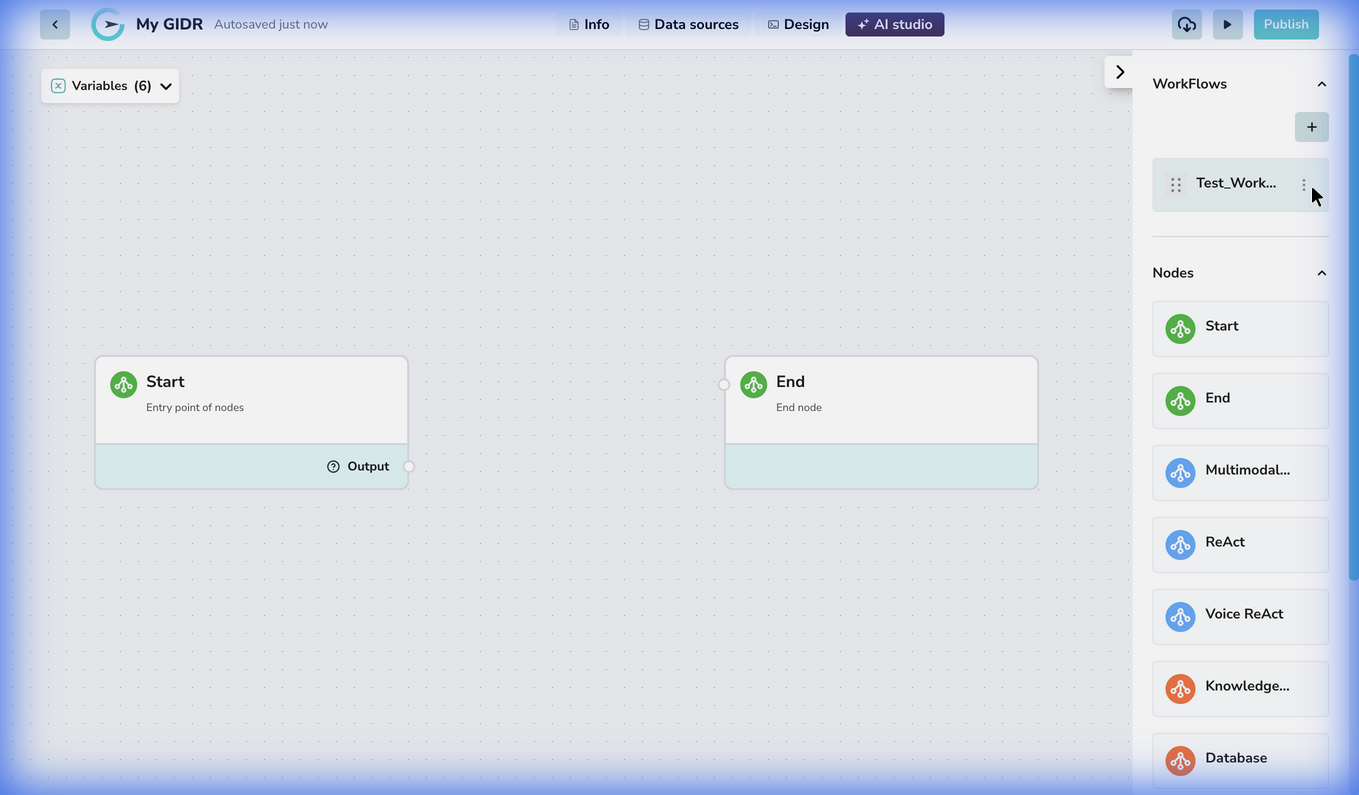
Edit Workflow
Click the workflow name or select Edit from the menu to open it in the canvas.Export Workflow
Select Export flow to download your workflow configuration as a JSON file. This is useful for backups or sharing flows between GIDRs.Copy Flow ID
Select Copy flow id to get the unique identifier for the workflow, which may be needed for API integrations.Delete Workflow
Deleting a workflow is permanent and cannot be undone.