Nodes are the building blocks of your AI workflows. Each node performs a specific function, such as processing input, retrieving knowledge, or making decisions.
Accessing Nodes
The Nodes panel is located on the right side of the AI Studio interface, below the Workflows list.
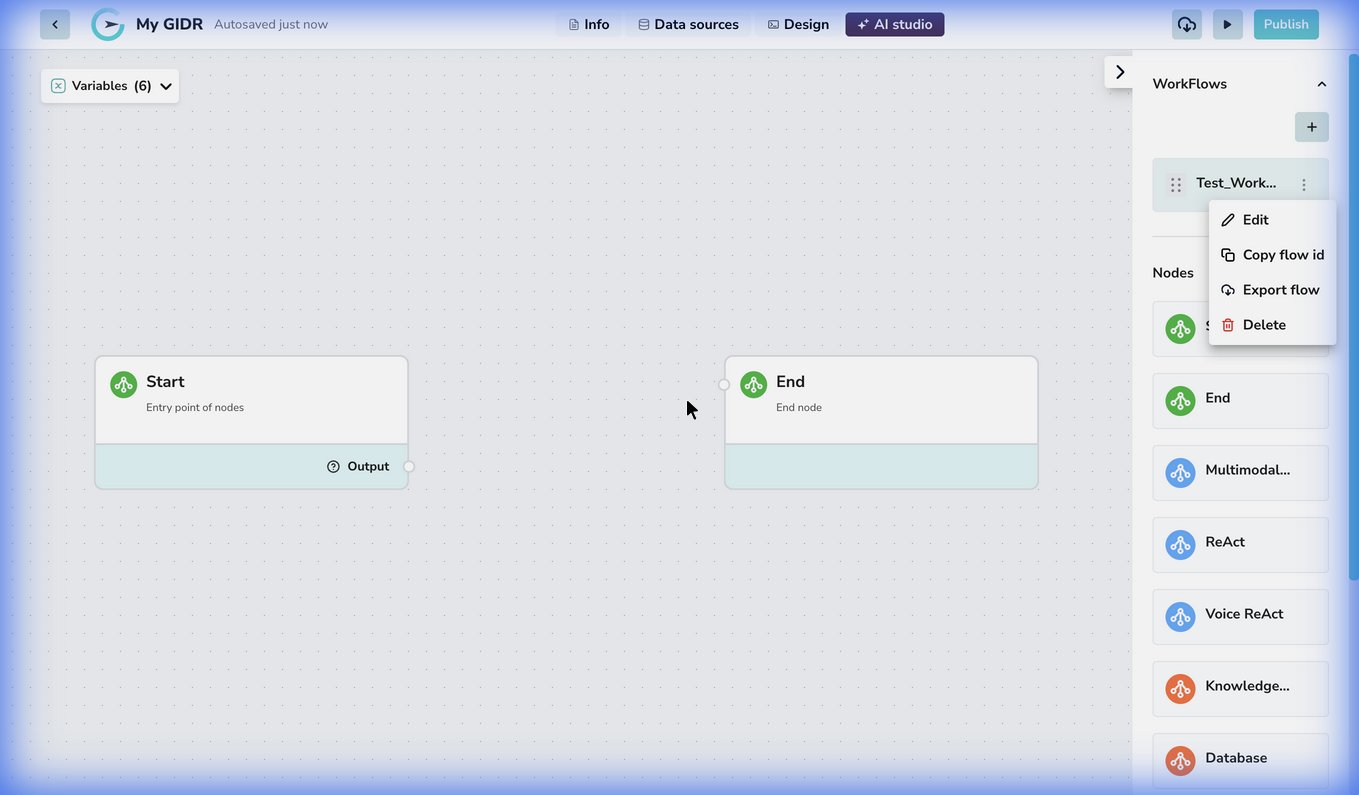
To use a node, simply drag and drop it from the panel onto the canvas.
Available Nodes
Logic Nodes
| Node Type | Description |
|---|
| Start | The entry point of your workflow. Every workflow must have a Start node. |
| End | The final step in your workflow. Returns the final output. |
| If/Else Router | Creates conditional branching to split your workflow into different paths based on specific conditions. |
AI & Reasoning Nodes
| Node Type | Description |
|---|
| ReAct | Implements “Reasoning + Acting” logic, allowing the AI to think and perform tasks. |
| Voice ReAct | Specialized ReAct node optimized for voice-based interactions and processing. |
Data & Content Nodes
| Node Type | Description |
|---|
| Multimodal Content | Handles various content types (text, image, audio) for input/output processing using LLMs. |
| Knowledge Retrieval | Retrieves information from your GIDR’s knowledge base (files, URLs, etc.) via semantic search. |
| Database | Executes SQL queries on connected databases to retrieve or store structured data. |
| REST API | Connects to external services and APIs using HTTP requests. |
| REPL | Executes custom Python or JavaScript code directly within your workflow. |
| Markdown | Renders and processes markdown-formatted content. |
Configuring Nodes
Click on any node in the canvas to open its configuration panel. The available settings depend on the node type:
- Inputs/Outputs: Define what data flows into and out of the node.
- Parameters: specific settings for the node’s behavior (e.g., model selection, prompt templates).
Data Flow Between Nodes
Nodes communicate by passing data through connections. Each node can produce outputs that become available as inputs to downstream nodes.
How It Works
-
Outputs: When a node executes, it produces one or more output variables. For example, a Knowledge node produces
documents, texts, and images outputs.
-
Connections: Draw a line from a source node’s output handle to a destination node’s input handle to establish a data flow.
-
Variable Selection: In the destination node’s configuration, use the Input variable selector to choose:
- Comparison Type: Select “Node” to reference another node’s output.
- Node: Choose which upstream node to pull data from.
- Output Variable: Select which specific output to use (e.g.,
documents vs texts).
Common Patterns
| Pattern | Description |
|---|
| Knowledge → Multimodal | Retrieve context, then pass it to an LLM for reasoning. Select texts for simple prompts or documents for full context. |
| Start → Router → Multiple Paths | Branch logic based on user input or conditions. |
The ReAct node has built-in retrieval capabilities configured as tools within the node itself, so it typically doesn’t require a separate Knowledge node upstream.
Each node type has different output options. See the individual node documentation pages for details on what outputs each node provides.