

Create GIDR
Start by creating a new GIDR for your team.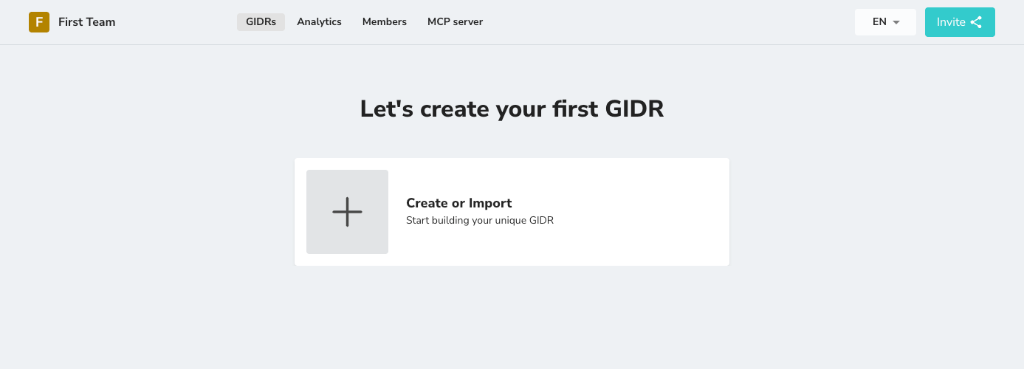
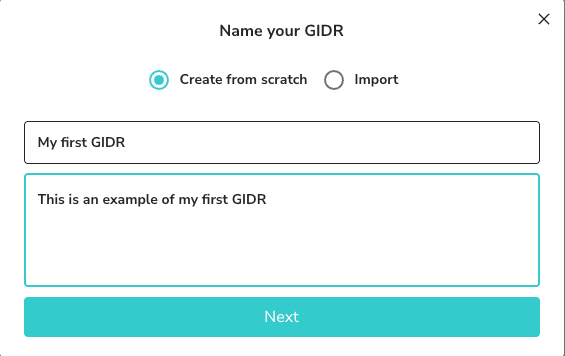
Create from Scratch
- Click the ”+” button or “Create GIDR” if you already have existing GIDRs.
- Select Create from scratch.
- Enter a descriptive Name (e.g., “Customer Support Bot”).
- Provide a Description for context.
- Click Next to proceed to configuration.
Import GIDR
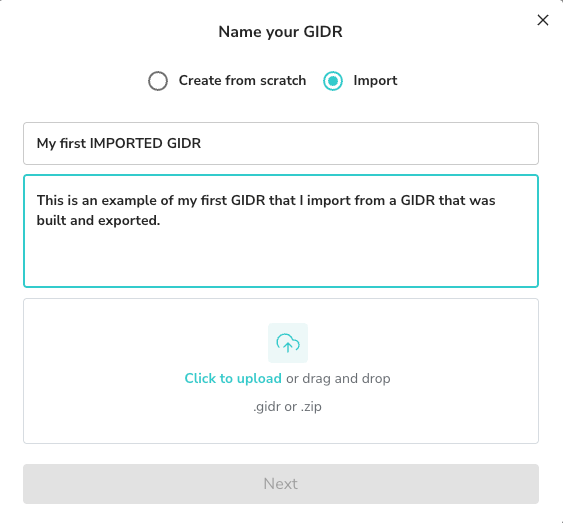
You can import a GIDR from an exported configuration file (.zip).
- Select Import.
- Enter a Name and Description.
- Click to upload or drag and drop your GIDR file.
- Click Next.
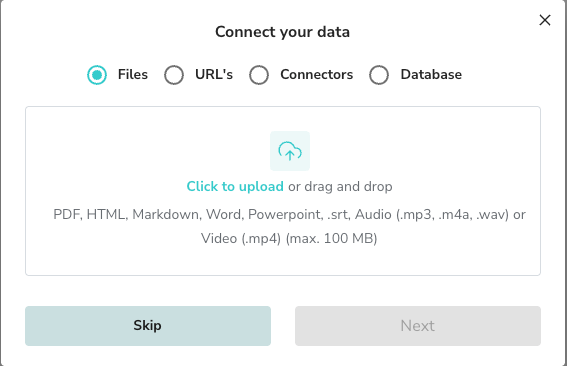
- Configure your initial data sources (Files, URLs, Connectors, or Database).
List GIDRs
View and manage all your GIDRs in the list view. You can see the creator, last update date, and publication status.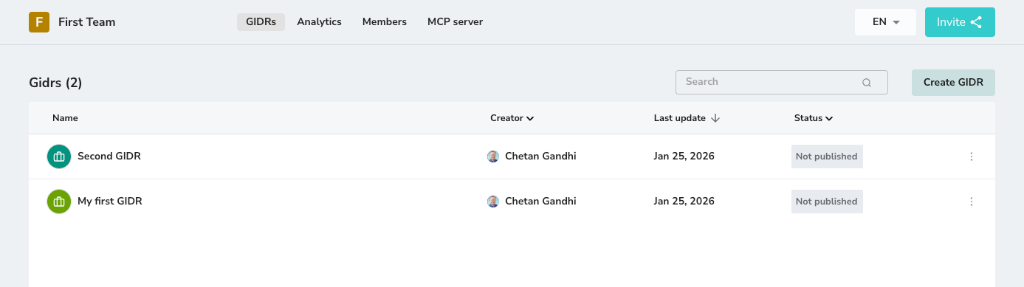
Manage GIDR Actions
Click the three dots menu on the right side of any GIDR to access management actions.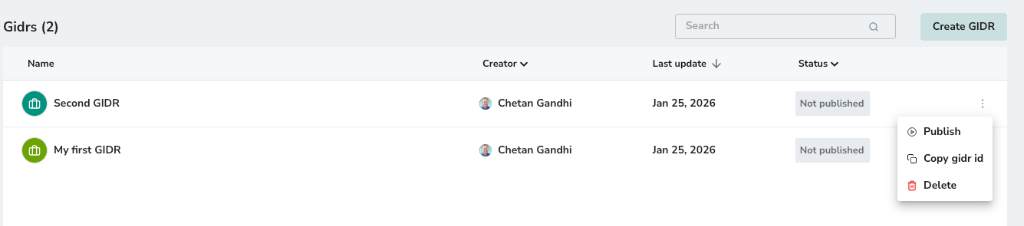
Publish GIDR
Publishing a GIDR makes it accessible.- Select Publish from the menu.
- Alternatively, you can unpublish a GIDR to return it to draft mode.
Delete GIDR
Deleting a GIDR is permanent and cannot be undone.
- Select Delete from the menu.
- Confirm the action in the dialog to permanently remove the GIDR.