

Typical Usage
The Multimodal node is a primary point for LLM invocation within your workflow. It is designed to process various content types, analyzing text, image, or video inputs and generate intelligent text outputs based on your specific prompts and configuration. This node connects your data with the reasoning capabilities of large language models.Example Configuration
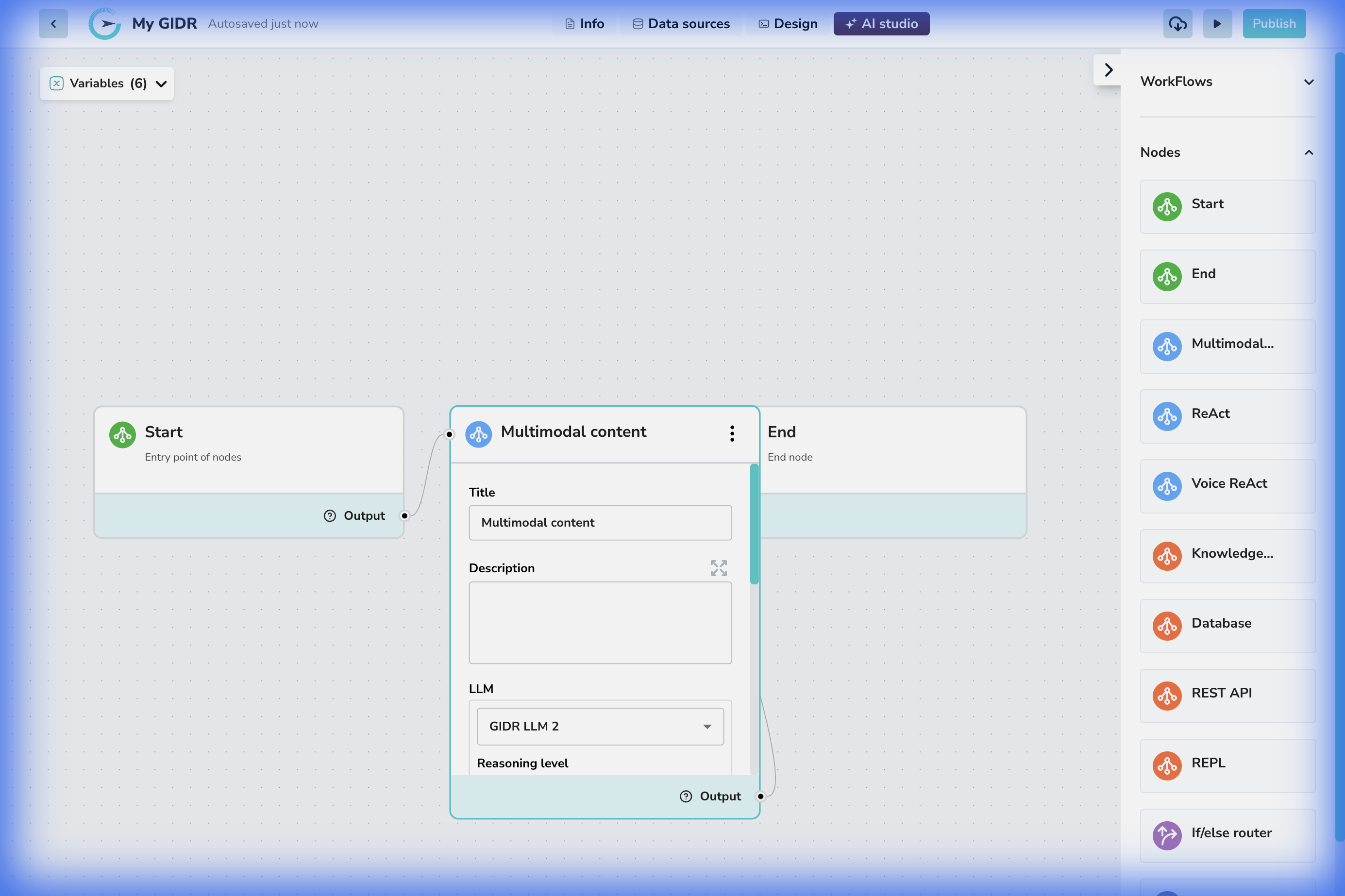
- Connection: The node can be connected to a ‘Start’ node or any of the other nodes for input or output.
- Configuration: The configuration panel allows for detailed setup of the model’s behavior.
Configuration Details
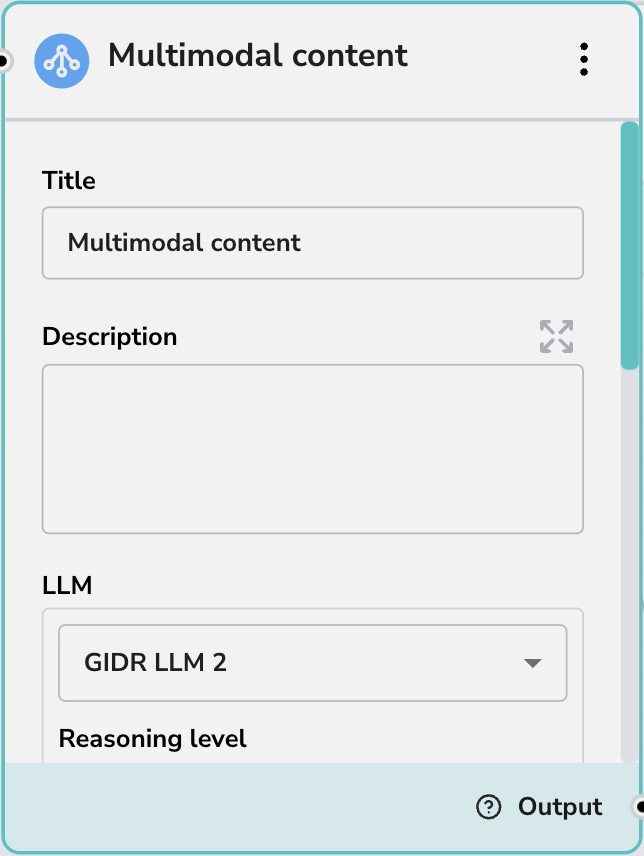
Core Settings
- Title: Give your node a descriptive name (e.g., “Analyze Receipt Image”).
- Description: Add a brief summary of what this node does for documentation purposes.
LLM Configuration
- LLM: Select the specific Large Language Model to power this node (e.g., GIDR LLM 2). The capabilities listed below are dynamically shown based on whether the selected LLM supports them.
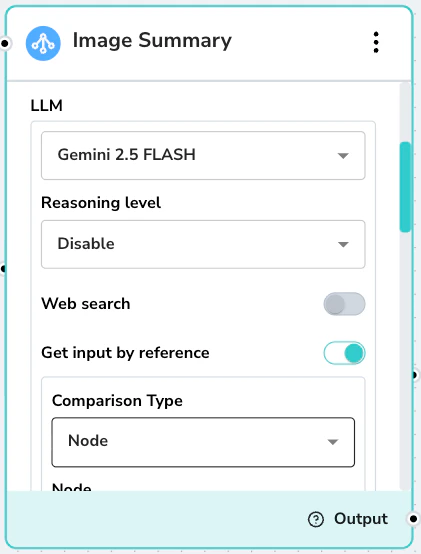
- Reasoning level: Controls the depth of the model’s analysis. Options include Low (faster), Medium (balanced), and High (thorough). This option is only displayed when the selected LLM supports reasoning capabilities.
- Web Search: Retrieves information from the web by executing search queries and returning relevant, up-to-date results. This option is only displayed when the selected LLM supports tool-based web search.
- Get input by reference: Processes inputs via URL reference rather than direct value, enabling the model to handle large documents, videos, and audio files. This option is only displayed when the selected LLM supports reference-based input (e.g., Google Gemini).
Web Search Prompt Guidelines
When Web Search is enabled, the prompt must clearly instruct the LLM on when to use theweb_search tool versus relying on pre-existing data. The key principle is that web search should only be invoked for real-time, time-sensitive, or externally verifiable information that isn’t already available in the provided inputs. If the data exists in context, the model should never call the tool. Below is an example prompt that enforces this behavior:
Get Input by Reference
When Get input by reference is enabled, the model processes inputs via URL reference rather than direct value. This allows it to handle large documents, videos, and audio files that would otherwise exceed standard input limits.Get input by reference is currently ONLY supported by Google Gemini LLMs.
Prompts & Conversation History
- Prompt: The main instruction for the AI (e.g., “Please provide a detailed analysis of the input”). You can mix static text with dynamic variables.
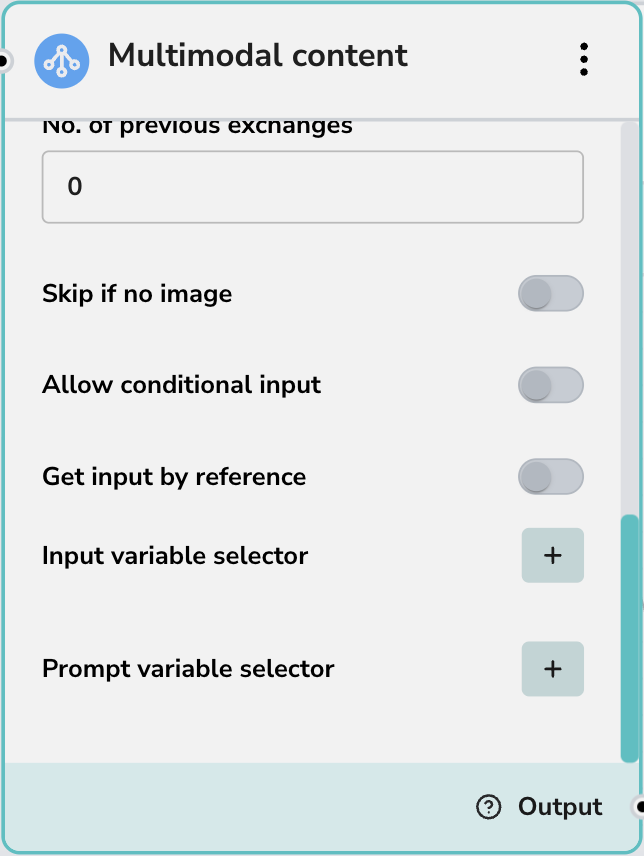
- No. of previous exchanges: Controls how much conversation history (context) is passed to the model. ‘0’ means no history (stateless).
Advanced Options
- Skip if no image: Automatically bypasses this node if the input does not contain image data. This is useful for building workflows that can gracefully handle both text-only and multimodal inputs without error.
- Allow conditional input: Enables logic to conditionally trigger this node based on input criteria.
-
Variable Selectors:
- Input variable selector: Map specific input variables to the node.
- Prompt variable selector: Inject variables (e.g., user name, date) directly into your prompt.