

Connectors
Connectors allow you to sync data directly from external cloud storage providers. GIDR supports multiple connectors to integrate with your existing data infrastructure.Supported Connectors
- File Storage: AWS S3.
- Database: PostgreSQL, Microsoft SQL Server.
Connect Data source
- Select Data Sources > + Add.
- Choose Connectors as the source type.
- Select your provider from the dropdown (e.g., AWS).
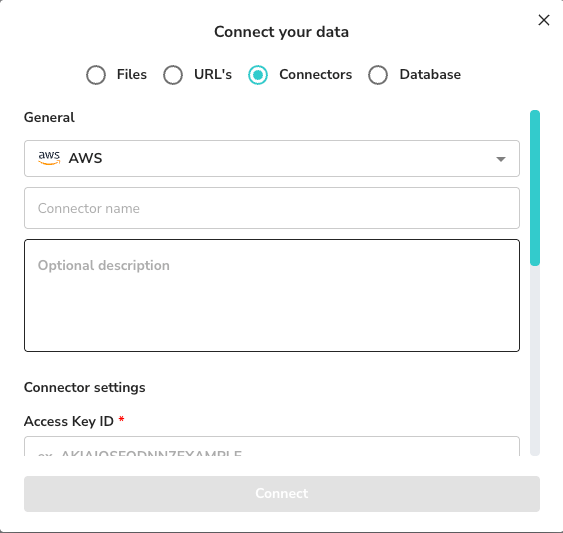
AWS S3 Configuration
To connect an S3 bucket, you will need to provide the following credentials and settings:General
- Connector name: A friendly name for this connection (e.g., “Marketing Assets”).
- Optional description: Extra details about the data source.
Connector Settings
- Access Key ID (Required): Your AWS IAM Access Key ID.
- Example:
AKIAIOSFODNN7EXAMPLE
- Example:
- Secret Access key (Required): Your AWS IAM Secret Access Key.
- Example:
wJalrXUtnFEMI/K7MDENG/bPxRfiCYzEXAMPLEKEY
- Example:
- Bucket Name (Required): The name of the S3 bucket to sync.
- Example:
project-data-backup
- Example:
- Folder Prefix: (Optional) Specify a subfolder path to limit the sync to a specific directory.
- Example:
images/uploads/
- Example:
- Language: Select the primary language of the documents (e.g., en).
Sync Frequency
Choose how often GIDR should check for new files:- Daily: Auto-sync every 24 hours.
- Weekly: Auto-sync once a week (you can select the day).
- Never: Manual sync only.
Database Connectors
GIDR supports direct connections to SQL databases to sync tables.PostgreSQL Configuration
To connect a PostgreSQL database, provide the following connection details:General
- Connector name: A friendly name for this connection.
- Optional description: Extra context about this data source.
Connector Settings
- Host (Required): The database server address.
- Example:
db.example.com
- Example:
- Port (Required): The port number.
- Default:
5432
- Default:
- Database Name (Required): The specific database to connect to.
- Example:
production_db
- Example:
- SSL Mode: Toggle to enable/disable SSL connections (e.g.,
false). - Username (Required): Database user.
- Password (Required): Database password.
- Database Schema Name (Required): The schema to sync tables from.
- Default:
public
- Default:
Microsoft SQL Server Configuration
To connect a Microsoft SQL Server database, provide the following details:General
- Connector name: A friendly name for this connection.
- Optional description: Extra context about this data source.
Connector Settings
- Host (Required): The database server address.
- Example:
db.example.com
- Example:
- Port (Required): The port number.
- Default:
1433
- Default:
- Database Name (Required): The specific database to connect to.
- Example:
production_db
- Example:
- SSL Mode: Toggle to enable/disable SSL connections (e.g.,
false). - Username (Required): Database user.
- Password (Required): Database password.
- Database Schema Name (Required): The schema to sync tables from.
- Default:
dbo
- Default: