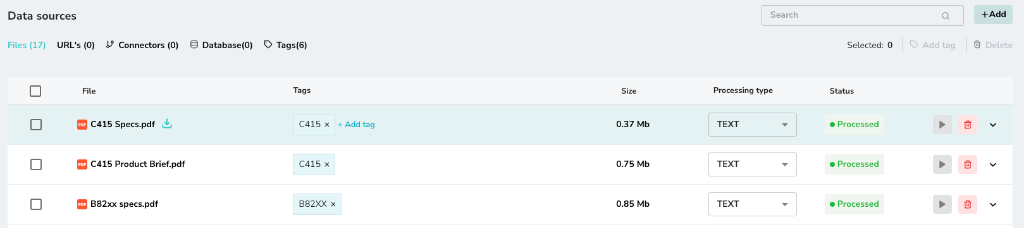
Creating a Tag
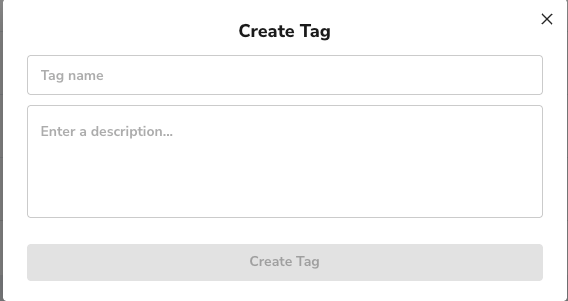
- Navigate to the Tags tab in the Data Sources section.
- Click + Create Tag.
- Enter a Tag name (e.g., “B82XX”) and an optional description.
- Click Create Tag.
Managing Tags
The main Tags list shows all your created tags, their descriptions, and how many data items are referencing them. You can edit or delete tags from this view.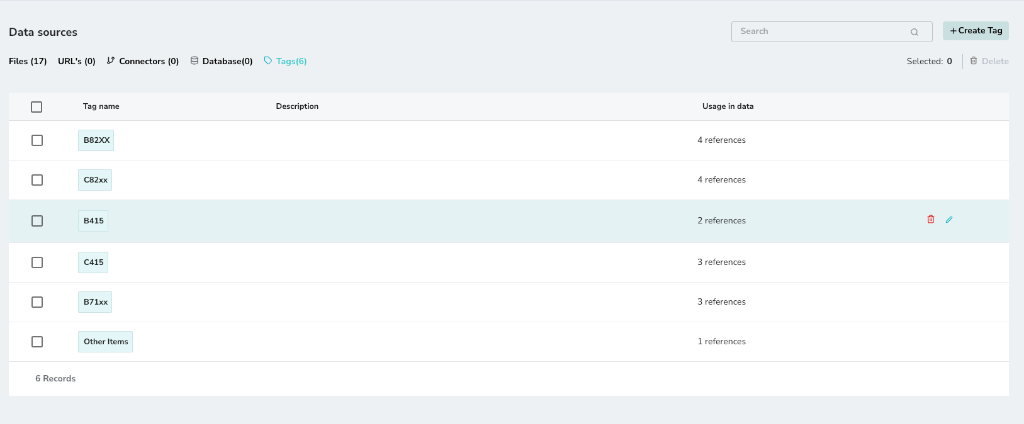
Assigning Tags to Data
You can assign tags to files, URLs, or other data sources directly from their respective lists.- In your Files or URLs list, locate the item you want to tag.
- Click the Tags column/button for that item.
- Select the relevant tag (e.g., “C415”) to assign it.